
Plans and billing
Every new MoneyMatter account starts with a free 40-day trial. After that, you pick a paid plan to keep adding to your data. This page covers what each plan includes, how to subscribe or make changes, and what happens when a trial or plan runs out.
Open Plan & billing
Section titled “Open Plan & billing”- Click the gear button (Settings) at the top right of the app.
- In the settings menu, under Personal, choose Plan & billing.
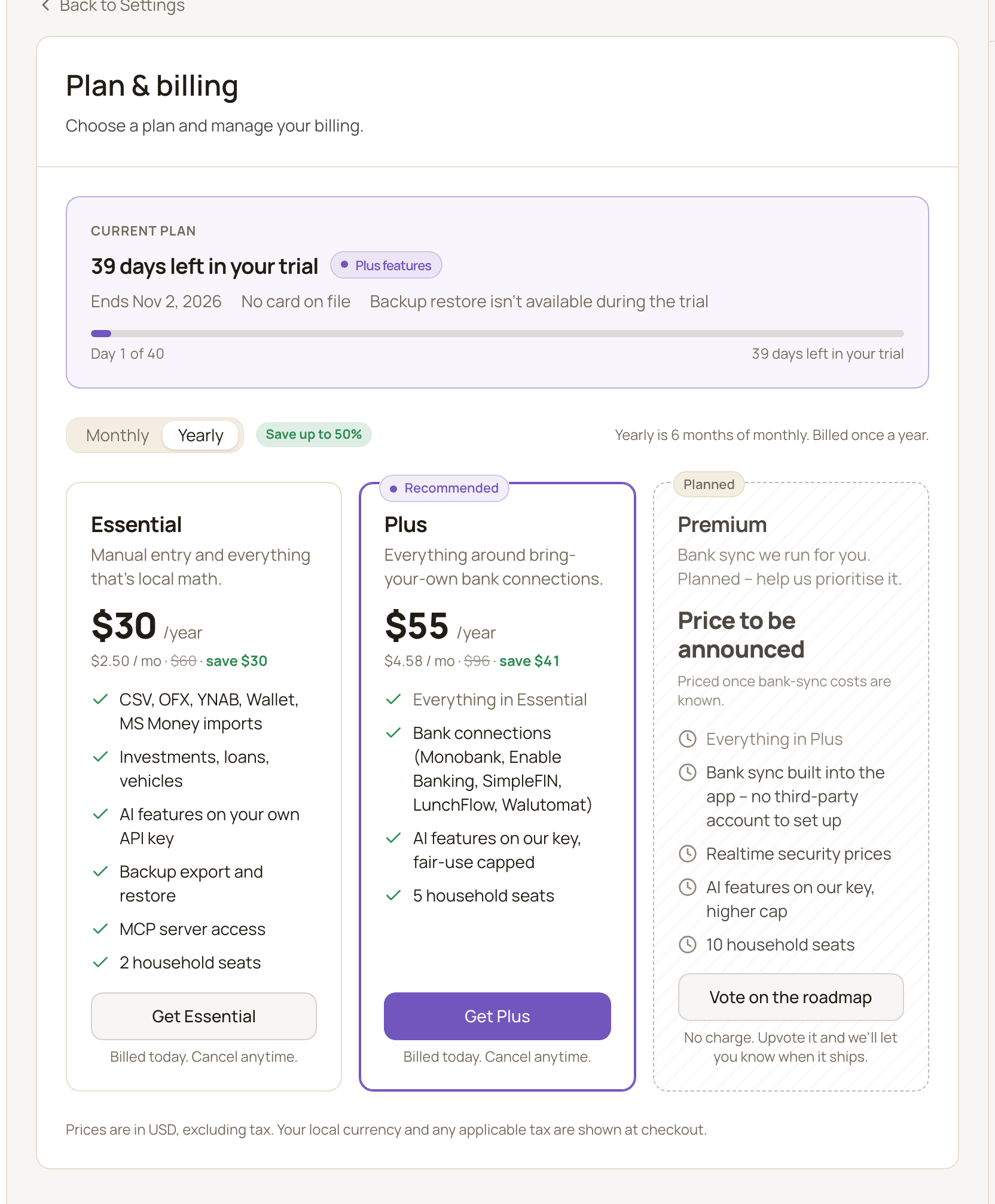
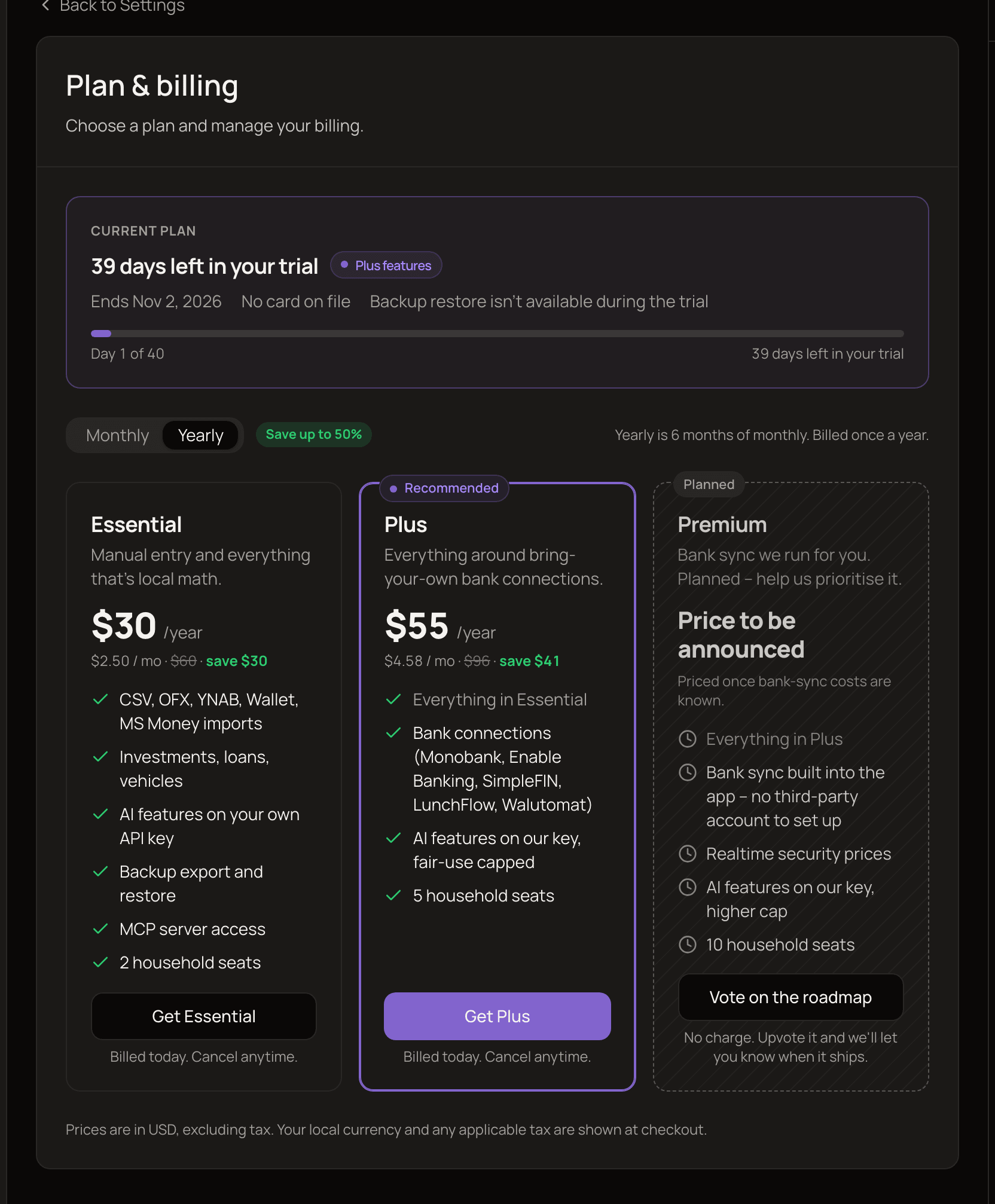
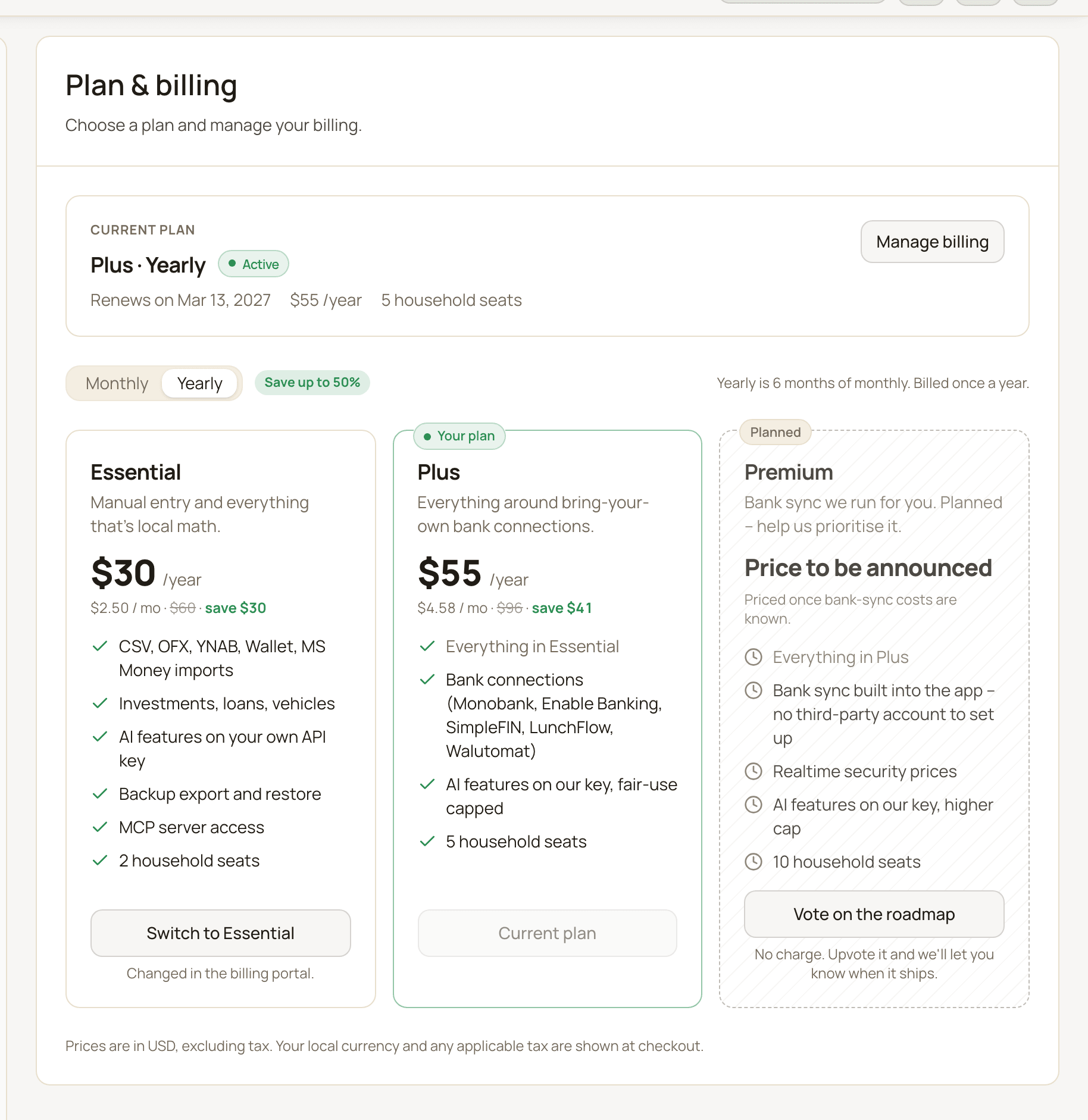
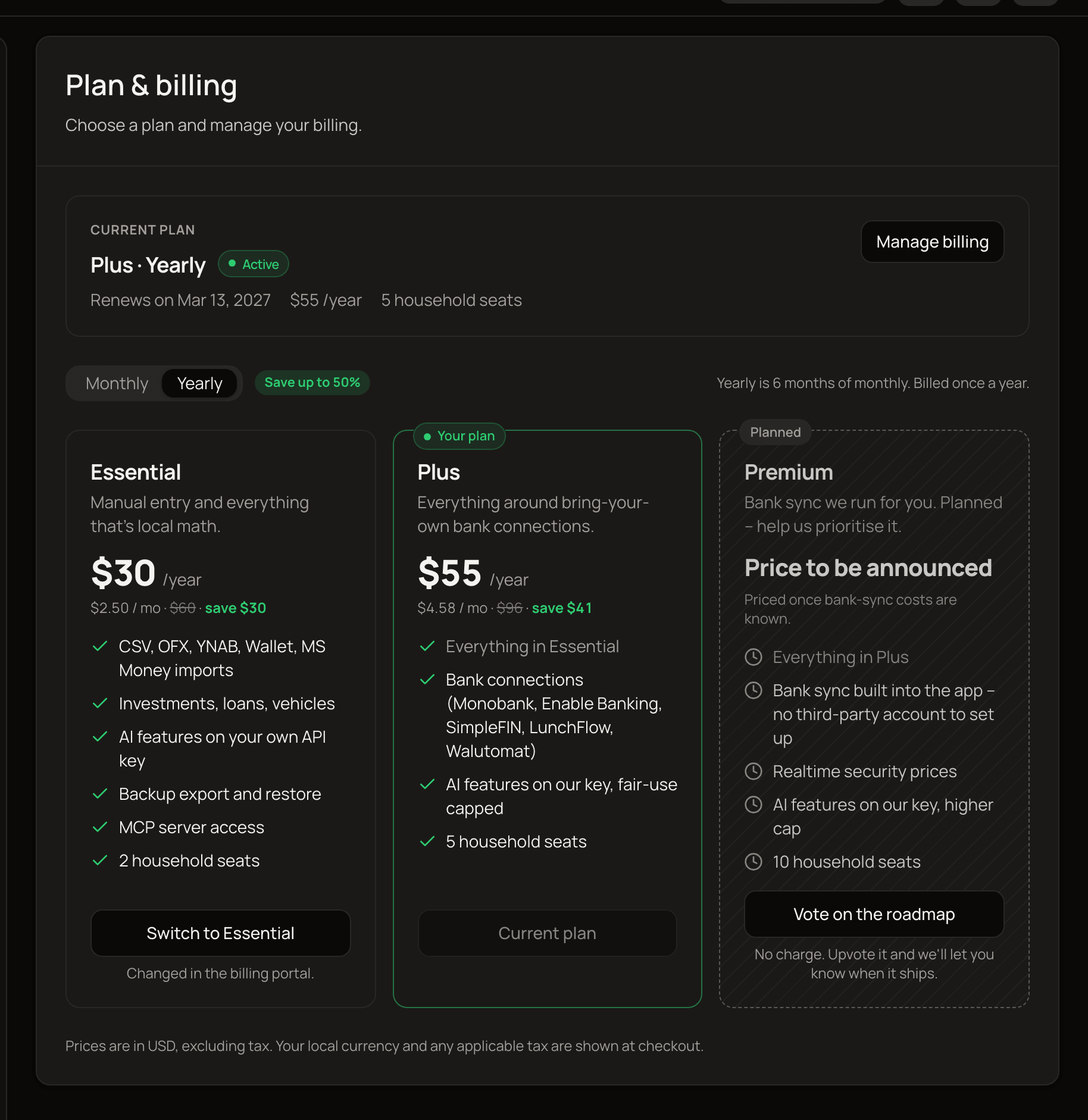
The Current plan box at the top shows where you stand: the days left in your trial, your plan and renewal date, or a Read-only badge (see Read-only mode). The plan cards are below it.
Any See plans link in the app also brings you here.
Your free trial
Section titled “Your free trial”- 40 days, no card needed. The trial starts automatically when you sign up.
- Almost everything is included. You get every Plus feature except Restore from backup. You can still download a backup during the trial. Restore is left out because restoring into a brand-new trial account would let anyone restart the trial forever.
- Nothing is charged when it ends. There’s no card on file, so if you don’t subscribe, your account simply becomes read-only.
- One trial per email address. If you delete your account and sign up again with the same email, you continue the original 40-day trial instead of starting a new one.
A banner at the top of the app shows how many days you have left. On Plan & billing, a progress bar shows “Day X of 40” and changes colour when 7 or fewer days remain.
Compare plans
Section titled “Compare plans”There are two plans you can buy, Essential and Plus. Features not listed below work the same on both.
| Feature | Essential | Plus |
|---|---|---|
| Accounts, transactions, categories, stats | Yes | Yes |
| Imports from CSV, OFX, YNAB, Wallet and MS Money | Yes | Yes |
| Transaction attachments | Yes | Yes |
| Download a backup and restore from backup | Yes | Yes |
| Export your data | Yes | Yes |
| Bank connections | No | Yes |
| AI features | On your own API key | On your own key, or on MoneyMatter’s key (fair-use capped) |
| Attach invoice (AI reads an invoice and finds its transaction) | 5 free tries | Yes |
| Household seats | 2 | 5 |
Household seats are how many people can join your household, not counting you. The same limit applies separately to each account you share. Only people who have accepted your invitation take up a seat. Pending invitations don’t.
The third card, Premium, is marked Planned and isn’t for sale yet. If you’d like it, click Vote on the roadmap. It costs nothing.
Prices
Section titled “Prices”| Plan | Monthly | Yearly |
|---|---|---|
| Essential | $5 / month | $30 / year (works out to $2.50 / mo, you save $30) |
| Plus | $8 / month | $55 / year (works out to $4.58 / mo, you save $41) |
Prices are in US dollars and don’t include tax. MoneyMatter’s payments are handled by Stripe. Stripe’s checkout page shows the price in your local currency and adds any tax that applies.
Attach invoice free tries
Section titled “Attach invoice free tries”Attach invoice is in the arrow menu next to Add transaction at the top of the app. You drop in an invoice or receipt, and MoneyMatter finds the transaction it belongs to. Plus includes it. Without Plus, you get 5 free tries in total, and the dialog shows how many are left.
A try only counts once your invoice has been read and your transactions have been searched. An unsupported file or a document that isn’t an invoice doesn’t use one up.
Early Adopter plan
Section titled “Early Adopter plan”Some early users have the Early Adopter plan. It’s a lifetime plan that can’t be bought, and it shows as “Early Adopter · lifetime” with no renewal and no card on file.
- It includes everything Plus had when paid plans launched. Features added to Plus after that aren’t included. So far the only one is Attach invoice, which gives you the same 5 free tries as Essential.
- You get 50% off any paid plan for life, applied automatically at checkout. If you buy Plus, you keep your lifetime plan and also get the newer Plus features.
Subscribe to a plan
Section titled “Subscribe to a plan”- Open Plan & billing.
- Choose Monthly or Yearly above the plan cards. The page starts on Yearly.
- On the plan you want, click Get Essential or Get Plus. If you had a plan before, its card says Subscribe again.
- Complete the payment on Stripe’s checkout page.
- You’re taken back to Plan & billing. It shows Activating your plan for a few seconds, then “Your plan is now active.”
If you close the checkout page without paying, nothing changes.
If activation takes longer than usual, you’ll see “Your payment went through but the plan is still being set up.” Refresh the page after a minute. If your plan still doesn’t show, click Send feedback at the top of the app and tell us what happened.
Change or cancel your subscription
Section titled “Change or cancel your subscription”Once you’ve subscribed, you make every change in Stripe’s billing portal. Click Manage billing in the Current plan box to open it. If your last payment failed, the button says Update payment method and opens the same portal. That’s where you update your payment method, see your invoices and cancel. When you’re done, the portal sends you back to Plan & billing.
You can have only one subscription at a time, so once you’re subscribed the other plan’s card offers Switch to … instead of Get ….
Switch plan or billing cycle
Section titled “Switch plan or billing cycle”- Change plan: on the other plan’s card, click Switch to Plus or Switch to Essential.
- Change billing cycle: select the other cycle in the Monthly / Yearly toggle, then click Switch to Yearly billing or Switch to Monthly billing on your plan’s card.
Both buttons open the billing portal, where you confirm the change.
Cancel
Section titled “Cancel”- Open Plan & billing and click Manage billing.
- Cancel your subscription in the billing portal.
Cancelling doesn’t cut you off straight away. You keep full access until the end of the period you’ve paid for, and the Current plan box shows “Access until [date], then read-only” and “No further charges”. Changed your mind? Renew in the billing portal before that date, and your renewal date stays the same.
If a payment fails
Section titled “If a payment fails”On Plan & billing, the Current plan box shows a Payment failed badge and “Access continues until [date]”. Stripe retries your card automatically. To fix it, click Update payment method in the Current plan box to open the billing portal. The Update your payment method link in the banner at the top of the app brings you to this page. If Stripe still can’t charge your card after its retries, your subscription ends and your account becomes read-only. This can happen before the date shown.
Paused subscriptions
Section titled “Paused subscriptions”While a subscription is paused, your account is read-only, unless your 40-day trial is still running. The Current plan box shows a Paused badge and the date it resumes automatically. To review or cancel the subscription, click Manage billing to open the billing portal.
Read-only mode
Section titled “Read-only mode”Your account becomes read-only when your trial ends without a subscription, when your subscription ends, or while it’s paused (unless your 40-day trial is still running). Nothing is deleted. All your data stays exactly where it was, and it’s all editable again as soon as you pick a plan.
In read-only mode you can:
- View all your accounts, transactions and stats.
- Export your data: go to Settings → Import/Export → Export.
- View and download attachments already added to your transactions.
- Subscribe to a plan or open the billing portal.
- Delete your account.
You can’t:
- Add, edit or delete your data, such as accounts, transactions or categories. (Most of your preferences under Appearance, Language and General can still be changed. The Quick Start guide toggle can’t, and neither can currency or AI settings.)
- Download a backup. Use Export to take your data with you instead.
- Connect a bank or sync your bank connections.
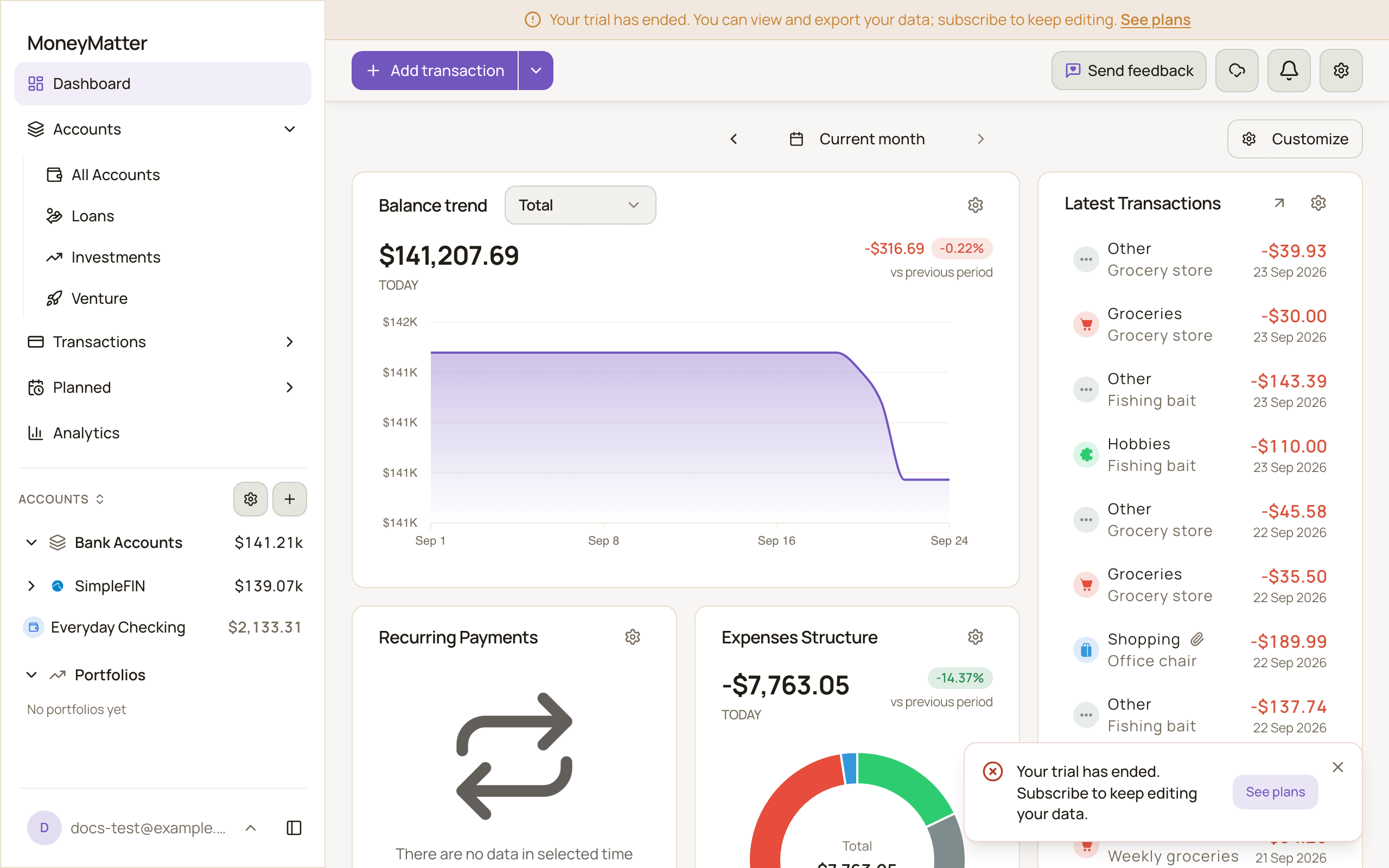
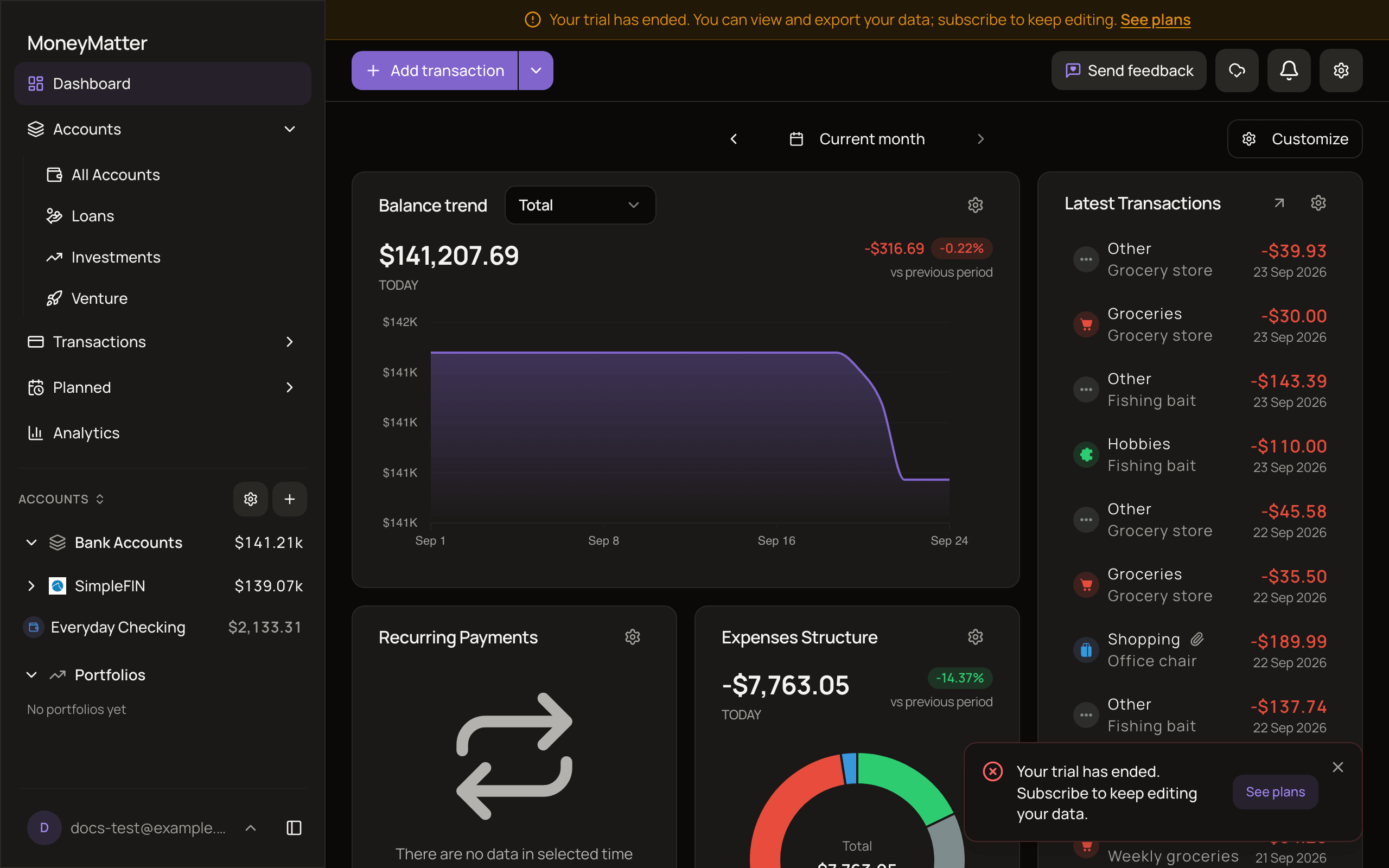
The app doesn’t hide edit buttons in read-only mode. When you try to save a change, a message stays on screen, for example “Your trial has ended. Subscribe to keep editing your data.”, with a See plans button that takes you to Plan & billing.
When a feature isn’t in your plan
Section titled “When a feature isn’t in your plan”If you open something your plan doesn’t include, you’ll see a lock card that says Included in the Plus plan (or Included in the Essential plan) with a See plans button. For example, Essential users see it when they start adding a bank connection. They can still see bank connections they already have, but can’t add, reconnect, sync, edit or disconnect them.
During the trial, the Select backup file button under Restore from backup is turned off, because restore isn’t part of the trial.
Good to know
Section titled “Good to know”- Everyone needs their own plan to make changes. If you share data with someone, whether they can edit depends on their own trial or plan, not yours.
- Deleting your account cancels your subscription first. If the cancellation doesn’t go through, your account isn’t deleted, so you’re never left paying for an account you can’t reach. Try again, or cancel from the billing portal first. See Security and account.
- A full refund ends the subscription. If the payment for your current period is fully refunded, the subscription ends right away.
Related
Section titled “Related”- Bank connections
- Security and account, for backups and deleting your account
- What is MoneyMatter?