
Bank connections
A bank connection brings your transactions and balances into MoneyMatter for you, so you don’t have to type them in or import files. You connect once, pick the accounts you want, and MoneyMatter keeps them up to date.
Who can use bank connections Plus
Section titled “Who can use bank connections ”Bank connections are part of the Plus plan, and they’re included in your free trial. On the Essential plan, clicking Connect bank shows Included in the Plus plan with a See plans button. See plans and billing.
Supported banks and services
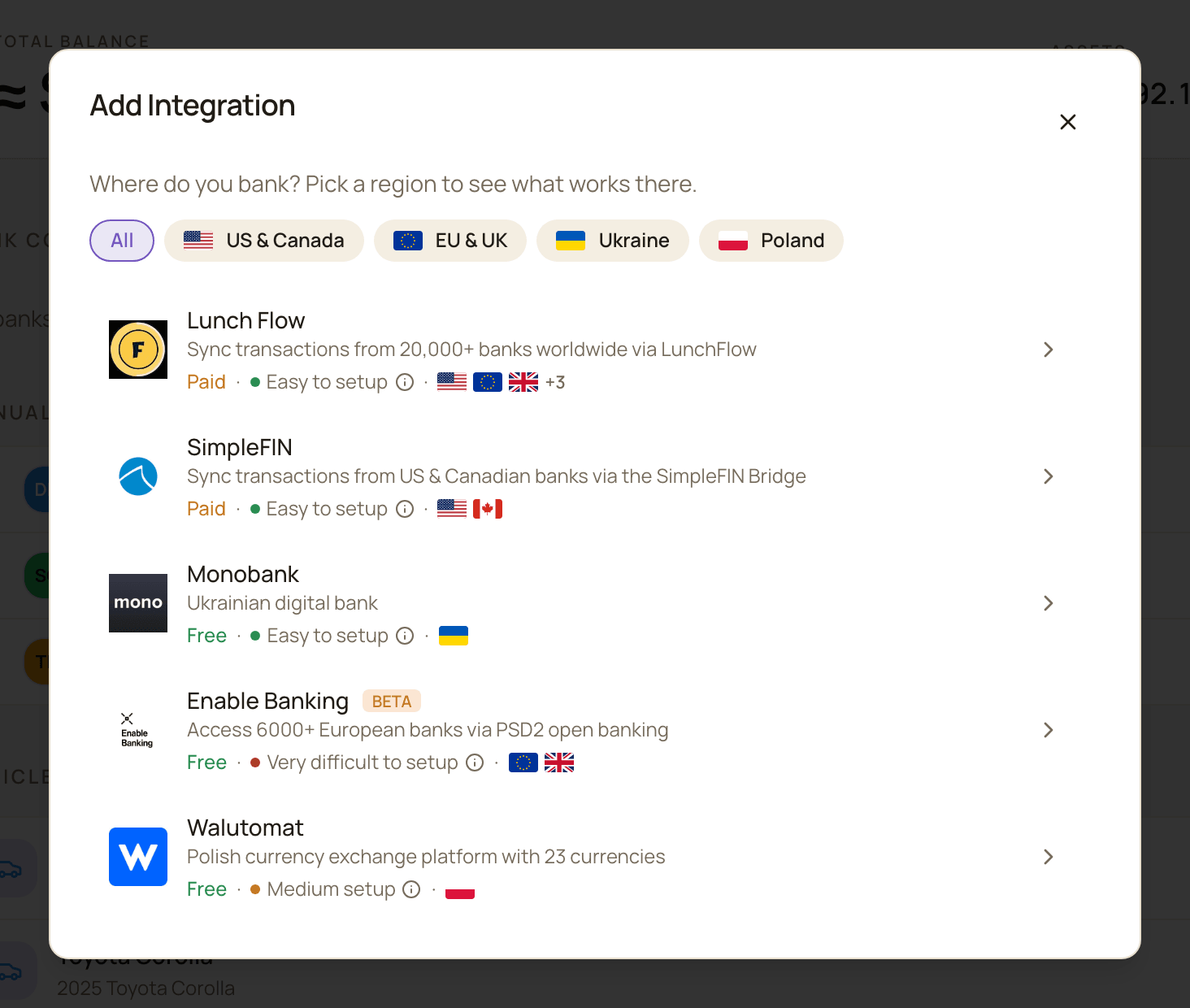
Section titled “Supported banks and services”MoneyMatter connects through five providers. Some talk to one bank directly, others connect you to thousands of banks.
| Provider | Where | Cost | Setup | What you need |
|---|---|---|---|---|
| Lunch Flow | USA, EU, UK, Canada, Australia, New Zealand. 20,000+ banks. | Paid | Easy to setup | A Lunch Flow account with your banks connected, and its API Key (in Lunch Flow: Settings → API Destinations). |
| SimpleFIN | USA and Canada | Paid | Easy to setup | A SimpleFIN Bridge account with your bank linked, and a Setup token from the Bridge dashboard. |
| Monobank | Ukraine | Free | Easy to setup | A personal API Token, which you create at api.monobank.ua. The token is read-only. |
| Enable Banking (Beta) | EU and UK. 6,000+ banks through open banking. | Free | Very difficult to setup | Your own Enable Banking developer application: its Application ID and Private Key. |
| Walutomat | Poland. The currency exchange platform, with 23 currencies. | Free | Medium setup | An API Key and Private Key (PEM). You create a key pair and upload the public key in Walutomat (Settings → API). |
“Paid” means the provider charges for its own service, separately from your MoneyMatter plan. Lunch Flow and SimpleFIN are independent services that connect to your bank for you.
Connect a bank
Section titled “Connect a bank”- In the sidebar, open Accounts → All Accounts.
- In the Bank connections section, click Connect bank.
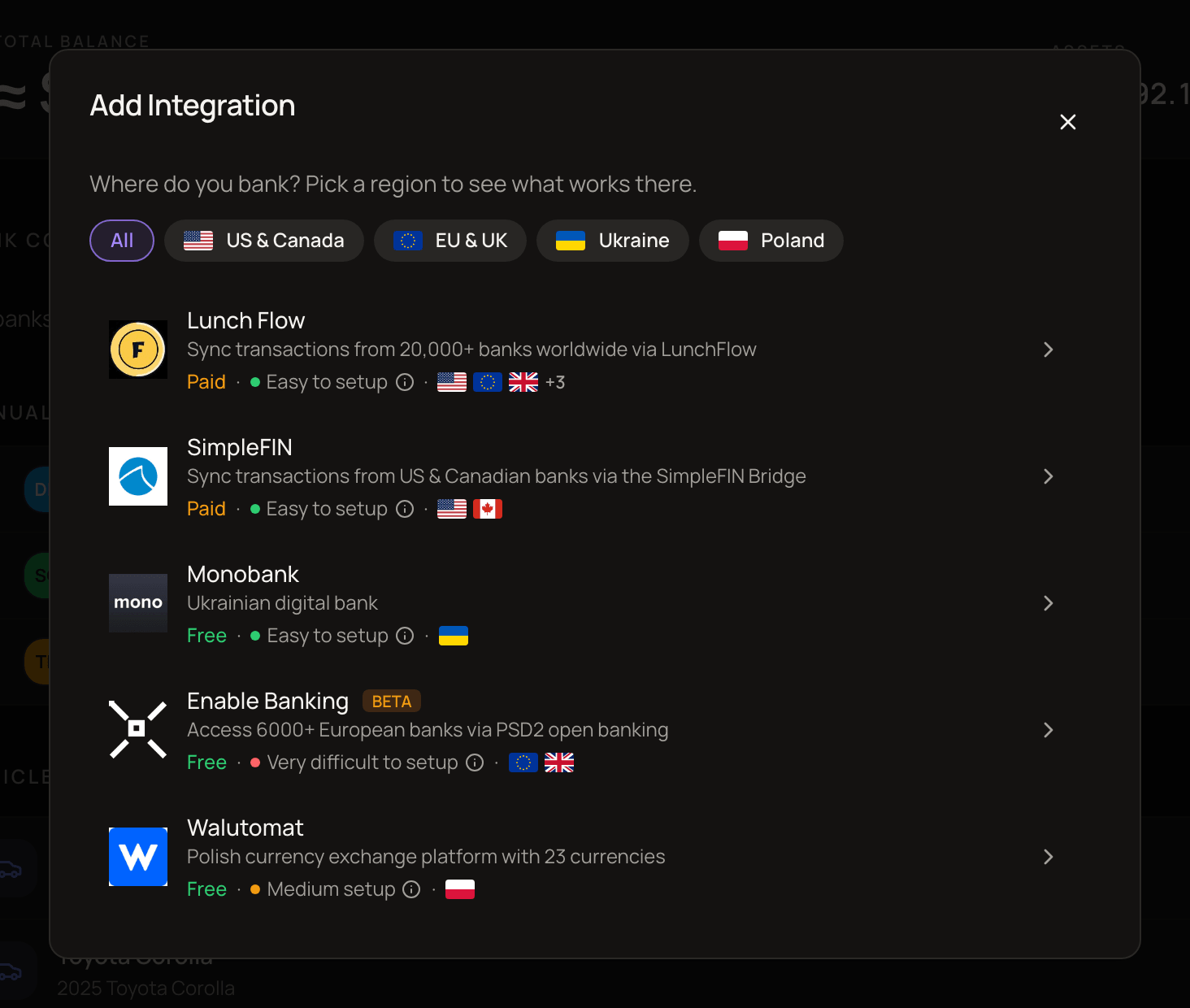
- In Add Integration, pick your region to narrow the list (All, US & Canada, EU & UK, Ukraine or Poland), then choose a provider. If you chose Enable Banking, follow Connect with Enable Banking instead.
- Paste your credentials and click Connect. Each form has a help link, such as Where do I get an API token?, with instructions for getting them.
- Choose the accounts to add, then click the button below the list (see Choosing accounts).
You’ll see “Transactions are syncing in the background”. The accounts appear right away, and their transactions follow over the next few minutes.
Choosing accounts
Section titled “Choosing accounts”What you see after Connect depends on the provider:
- Monobank: tick the accounts you want to sync, then click Sync 2 account(s) (the number matches your selection).
- SimpleFIN: tick the accounts, then click Import 2 accounts.
- Walutomat: each currency wallet is its own account. Tick the wallets, then click Import 2 wallet(s).
- Lunch Flow: all accounts from your Lunch Flow account are imported together. Click Import 3 account(s), or Skip if you only want some of them. You can then add specific accounts later from the connection’s page, or link them to accounts you already have.
If the bank doesn’t say which currency an account uses, you’ll be asked to Choose currency. Choose carefully: it can’t be changed later.
Connect with Enable Banking
Section titled “Connect with Enable Banking”Enable Banking sends you to your bank’s website to approve access:
- Choose Enable Banking, enter your Application ID and Private Key, and click Next.
- Select your bank’s country, then your bank.
- Click Authorize with and your bank’s name. You’re taken to your bank’s website.
- Log in at your bank and approve the connection.
- Back in MoneyMatter, you’ll see Connection Successful! and then the connection’s page.
- Click Connect Accounts, tick the accounts you want, and click Connect Selected Accounts.
Finish in the same browser you started in. MoneyMatter remembers the pending connection in that browser, and elsewhere you’ll see “Connection ID not found. Please start the connection process again.”
What happens to your connected accounts
Section titled “What happens to your connected accounts”Connecting always creates new accounts in MoneyMatter. Each one:
- takes its name from your bank,
- starts with the balance your bank reports,
- goes into an account group named after the connection.
The only exception: if an account was connected to the same bank account before and you disconnected it, connecting again reuses that account instead of making a new one.
You can’t connect the same bank account twice through two connections to the same provider. You’ll see “is already connected through” and the other connection’s name. Disconnect it there first.
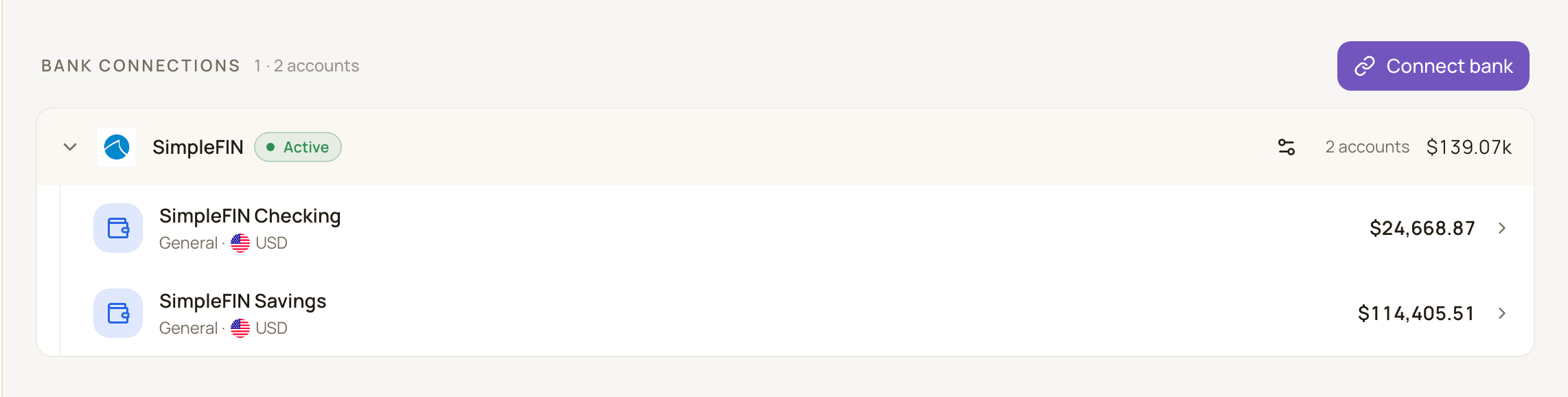
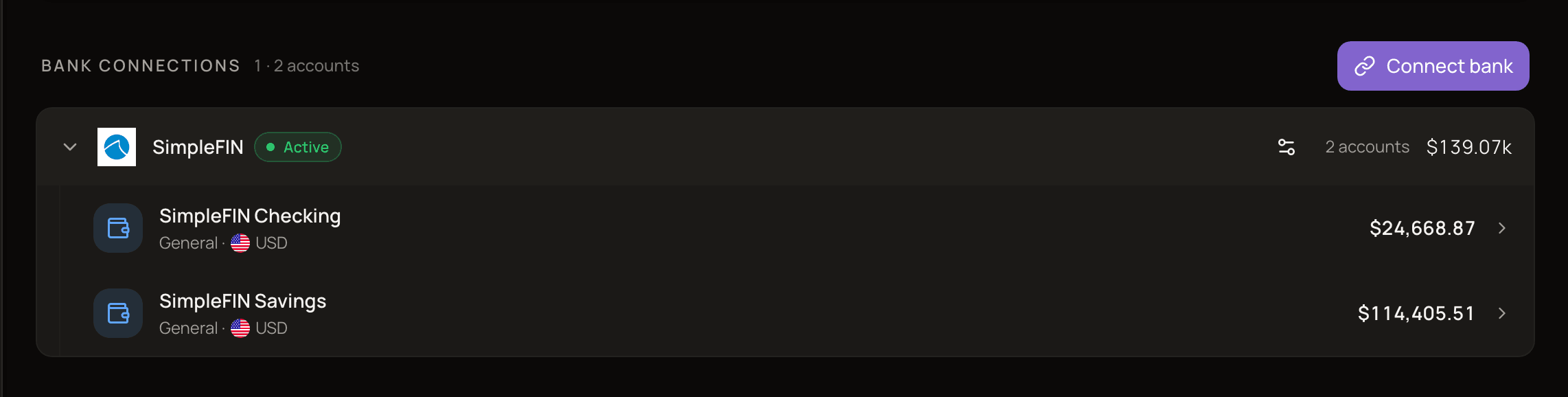
Connected accounts appear in the Bank connections section of the Accounts page. Each connection shows its status (Active, Expiring soon, Expired or Reconnect), how many accounts it has and their total. Click it to see its accounts, or click the gear button (Manage connection) to open its page.
Link an account you already have
Section titled “Link an account you already have”Already tracking an account by hand? Instead of creating a new one, you can connect it to your bank and keep its history.
- Connect the bank first (see connect a bank), and don’t select the account you’re about to link. With Lunch Flow, click Skip to connect without importing any accounts.
- Open the account you track by hand and select the Data Connection tab.
- Under Link account to bank connection, click Link to bank.
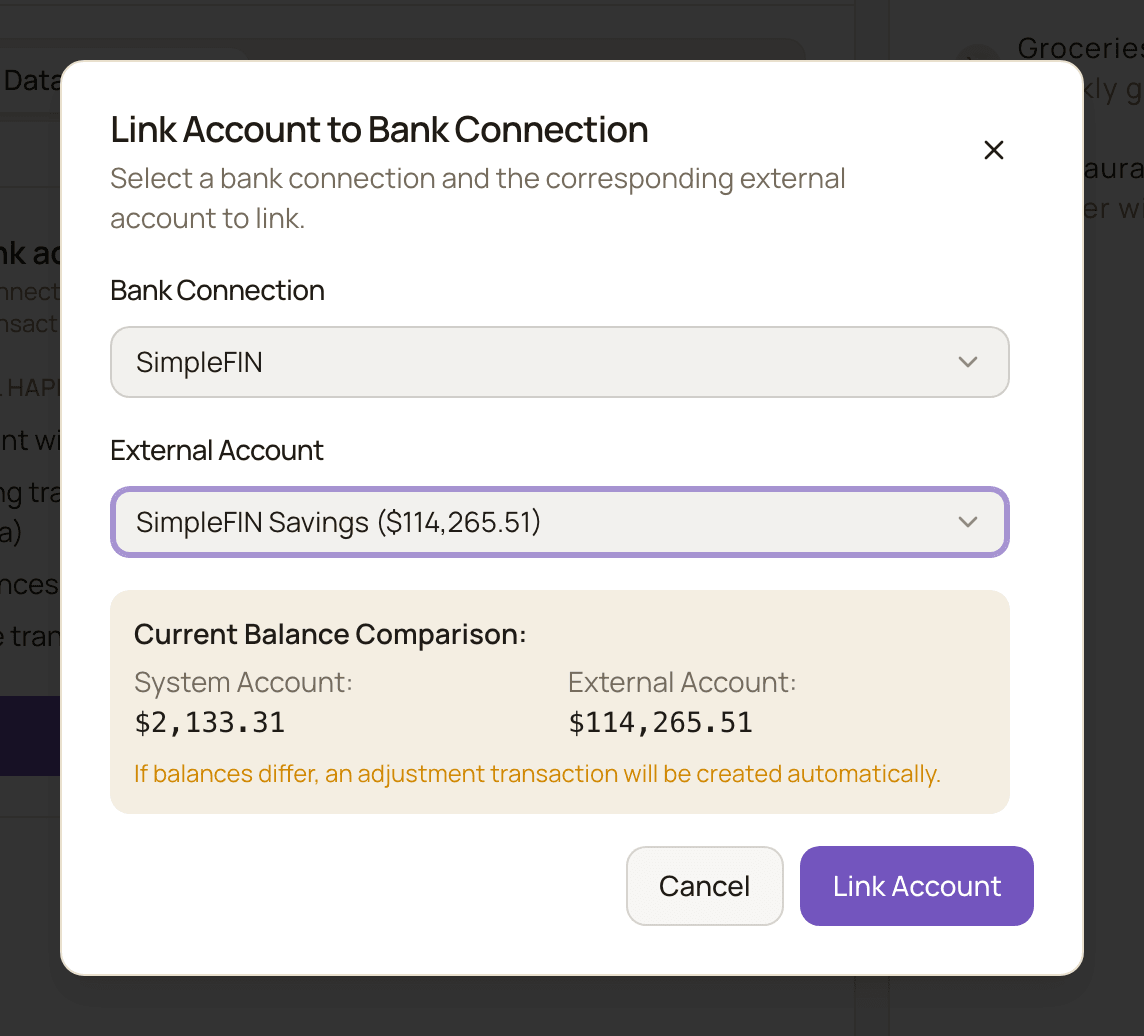
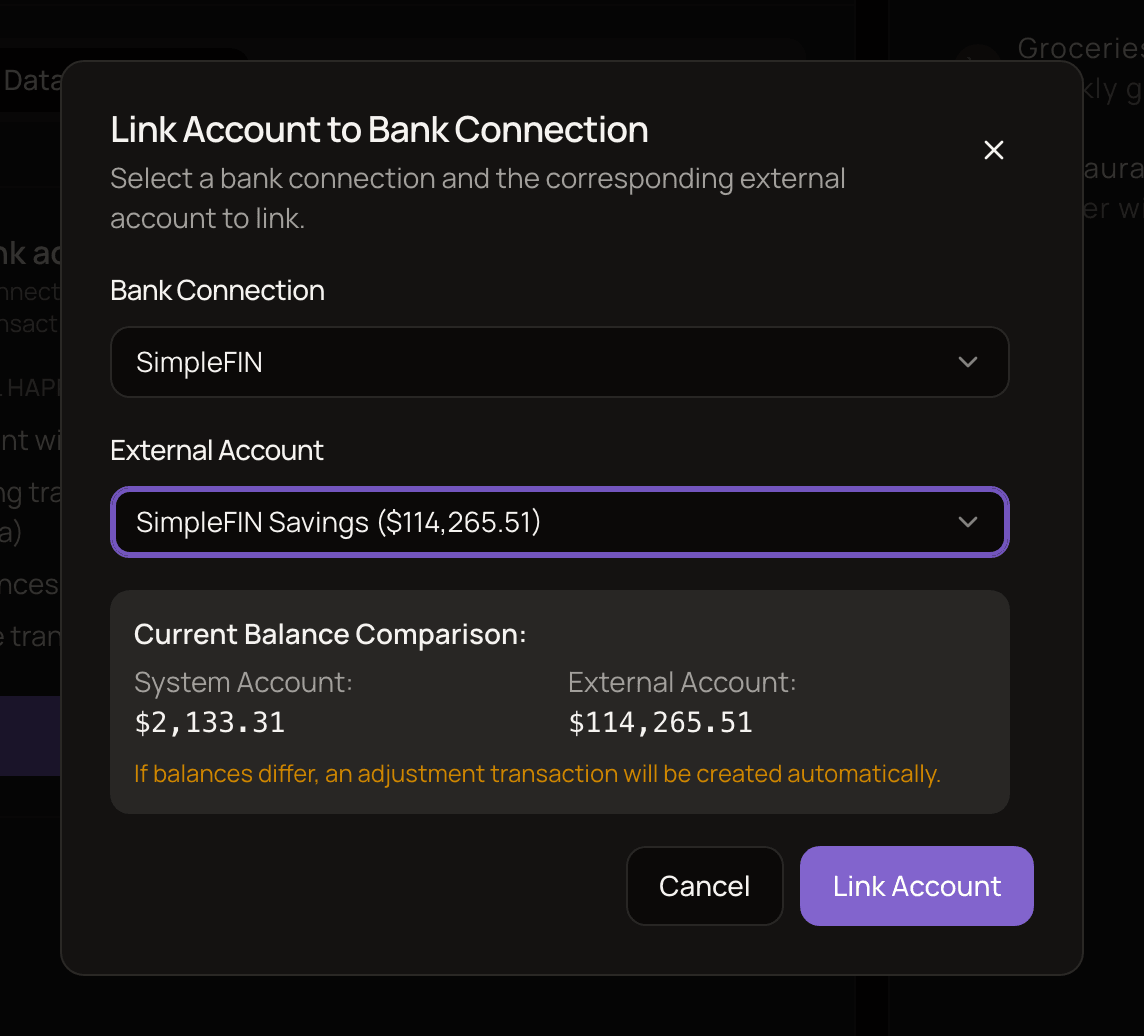
- Choose the Bank Connection, then the External Account at your bank.
- Check the balances shown, and click Link Account.
Both accounts must use the same currency. If they don’t, you’ll see ⚠️ Cannot Link Account.
What linking does:
- Your existing transactions stay as they are.
- The history you entered yourself isn’t downloaded again. With Monobank, SimpleFIN and Lunch Flow, syncing starts from the moment you link. With Enable Banking and Walutomat, it starts from your newest transaction in the account.
- The balance becomes your bank’s balance. Any difference between the two is absorbed into the account’s initial balance. No extra transaction is created.
- The account now follows the bank’s rules. See what you can edit.
How syncing works
Section titled “How syncing works”Automatic sync
Section titled “Automatic sync”When you open MoneyMatter, it checks when your banks last synced. If it’s been 12 hours or more, it syncs all your connected accounts in the background.
There’s no sync while you’re away: if you don’t open the app for a week, your accounts catch up the next time you do.
Sync now
Section titled “Sync now”To sync right away, use any of these:
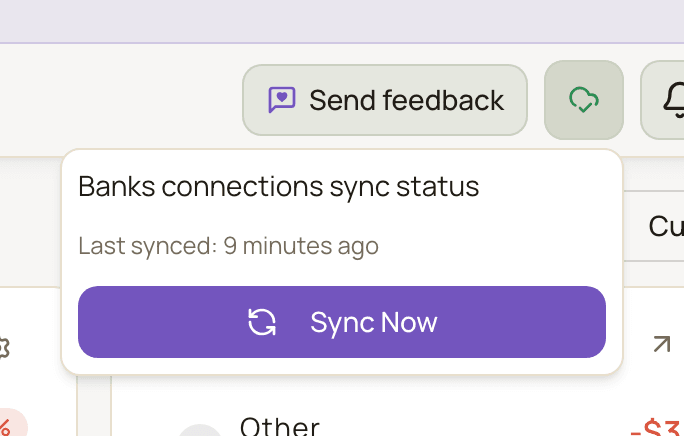
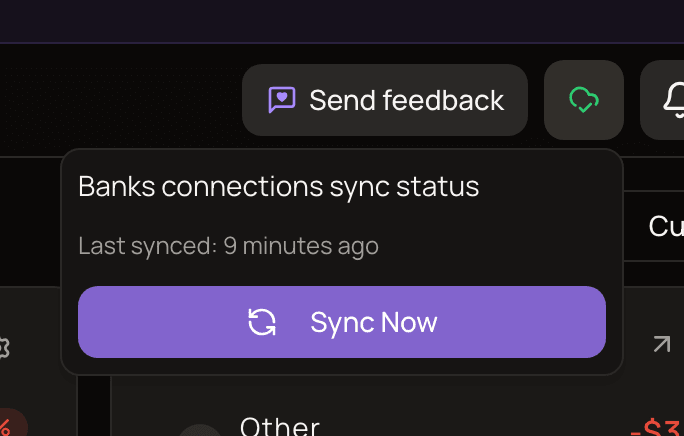
- The cloud button in the header. It opens Banks connections sync status, which shows when your accounts last synced and, while a sync runs, each account’s status (Syncing, Queued, Synced, Failed or Idle). Click Sync Now, or Retry sync after a failed sync.
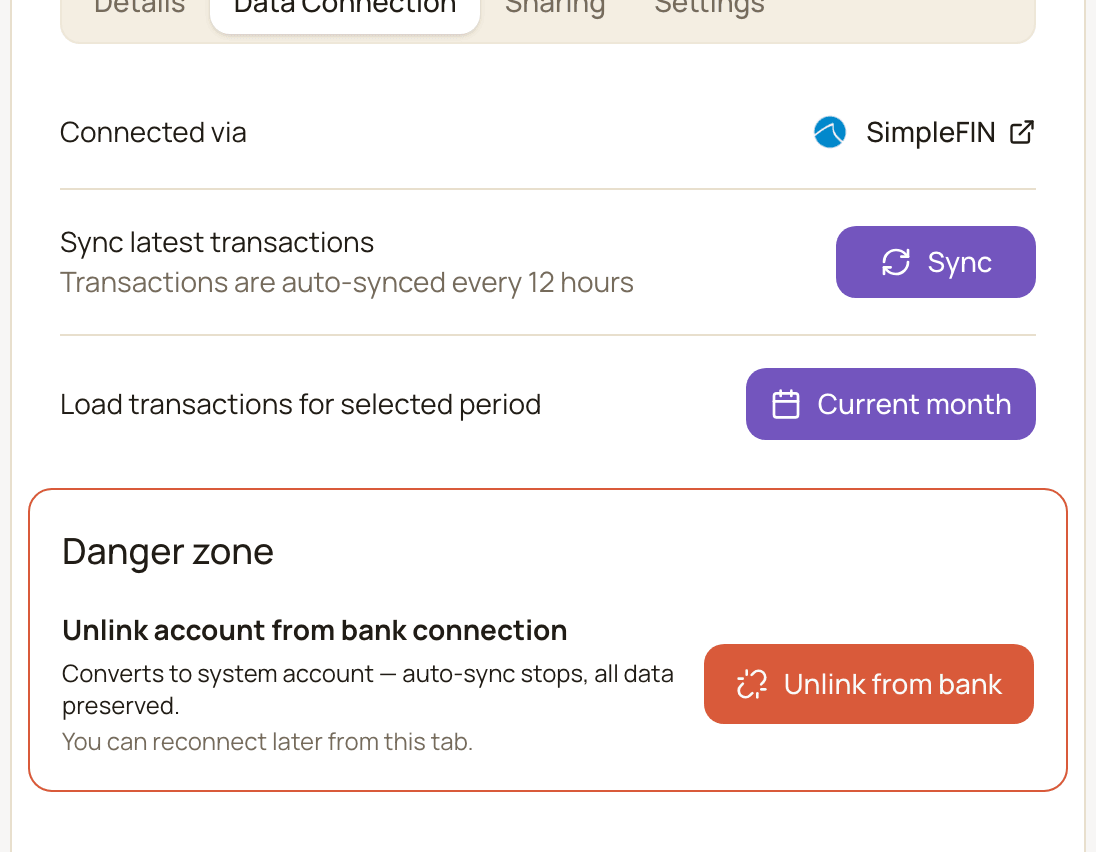
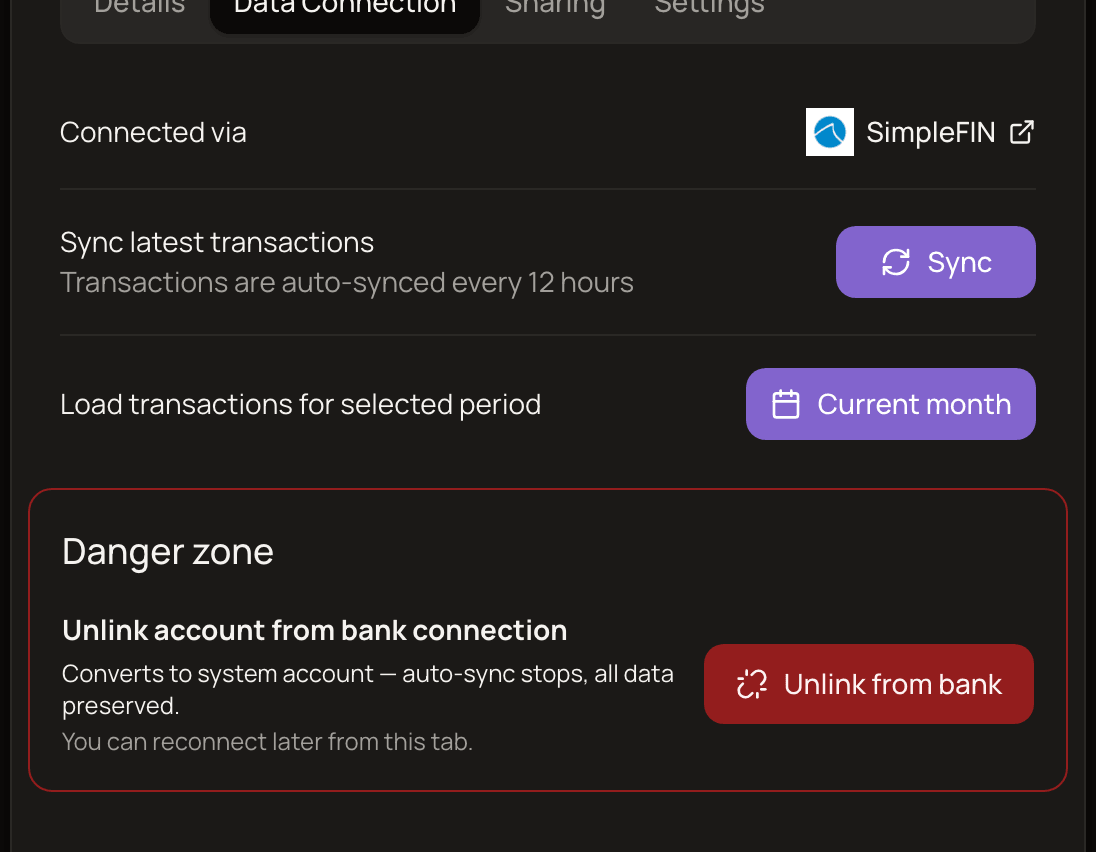
- The account’s page. On the Data Connection tab, next to Sync latest transactions, click Sync.
- The connection’s page. Click Sync now in the Connected Accounts section.
If you use Sync Now in the header less than 4 hours after the last sync, MoneyMatter asks first: Sync Recently Completed. Click Sync Anyway to go ahead.
How far back the first sync goes
Section titled “How far back the first sync goes”| Provider | History fetched when you connect |
|---|---|
| Monobank | The last 31 days |
| SimpleFIN | The last 6 months |
| Walutomat | The last 12 months |
| Enable Banking | As much as your bank allows: about 3 years, 2 years, 1 year or 90 days, depending on the bank |
| Lunch Flow | Whatever Lunch Flow has for the account |
After that, each sync picks up from your newest transaction.
Load older history
Section titled “Load older history”For Monobank and SimpleFIN accounts, you can fetch older transactions yourself:
- Open the account and select the Data Connection tab.
- Next to Load transactions for selected period, click the period button. It shows Current month until you pick another range.
- Choose a date range of up to one year. For more, repeat with another range.
Monobank only allows one request a minute, so a long period loads in the background in monthly chunks and can take a while.
For an account you linked, you can’t load transactions from before the day you linked it.
What synced transactions look like
Section titled “What synced transactions look like”- The balance comes from your bank. After each sync, the account’s balance is set to what your bank reports.
- New transactions start in your default category (usually Other), unless the payee has a default category. MoneyMatter then tries to categorize them automatically with AI. Review the categories and fix any it got wrong.
- Transfers between your own connected accounts are linked automatically. When MoneyMatter finds exactly one match with the same amount and currency, in the opposite direction, within 3 days, it turns the pair into a transfer. To also match against accounts you track by hand, turn on Match transfers with manual accounts.
- Walutomat currency exchanges between your wallets are linked as transfers.
- Pending card payments: with Enable Banking, they’re saved only if you turn on Import pending bank transactions, and when the bank books the payment, the pending copy is merged into it. Monobank saves card payments that are still on hold straight away, and those aren’t linked as transfers automatically. You can link them yourself.
What you can edit
Section titled “What you can edit”Transactions in a bank-connected account belong to your bank, so some details are locked to keep MoneyMatter matching your bank:
| You can change | You can’t change |
|---|---|
| Category, note, payee and tags | Amount, date and time, type (income or expense), payment type, account |
You also can’t:
- Delete these transactions. The Delete button doesn’t appear.
- Add transactions to a bank-connected account by hand. They arrive from your bank.
You can still make a synced transaction part of a transfer. See transfers with bank-connected accounts.
Why you won’t see duplicates
Section titled “Why you won’t see duplicates”- Each bank transaction is saved once. MoneyMatter remembers the bank’s own ID for every transaction and skips ones it already has, even after you disconnect and reconnect the account. The exception is Monobank: after reconnecting, the most recent transaction from before you disconnected can come in a second time.
- Manual and synced transactions don’t overlap. You can’t add transactions to a connected account by hand, and a linked account doesn’t download the history you already entered. File imports are the exception, see what you can edit.
- Pending payments merge with the booked ones (Enable Banking only), so a card payment doesn’t appear twice when the bank books it a few days later.
Manage a connection
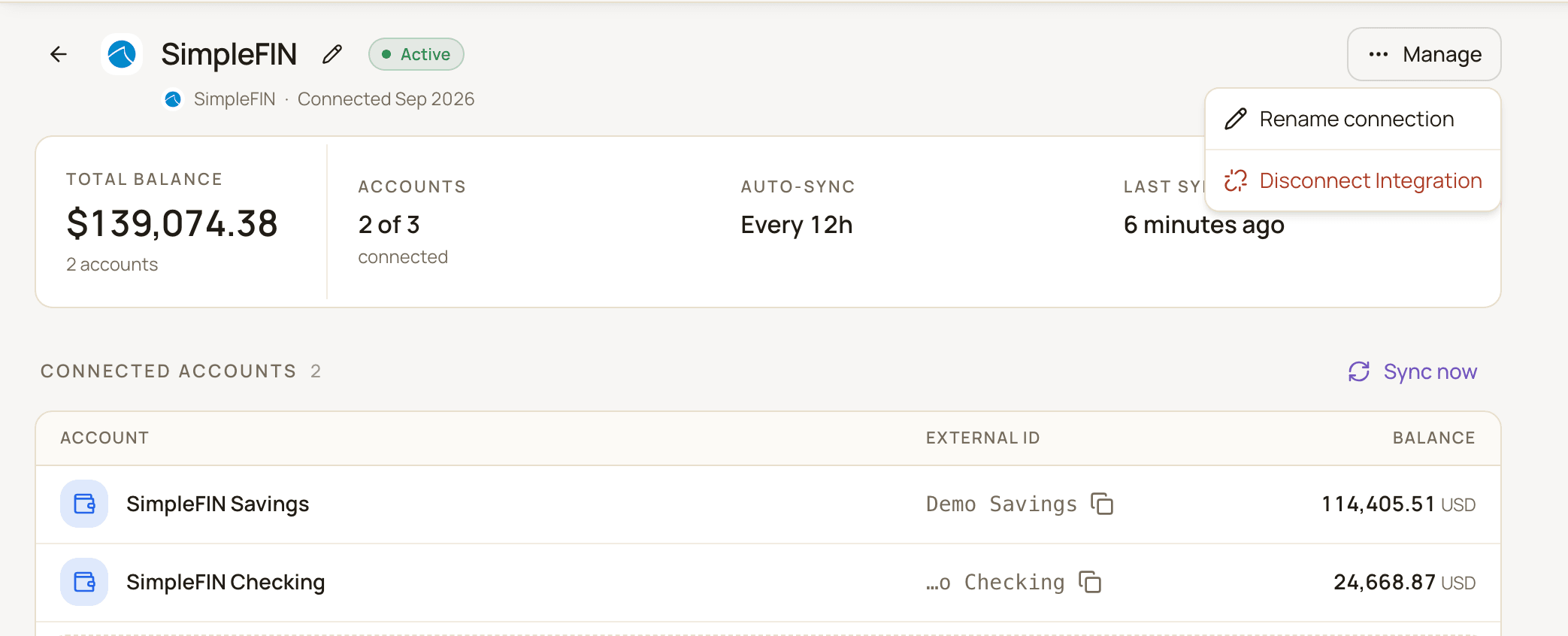
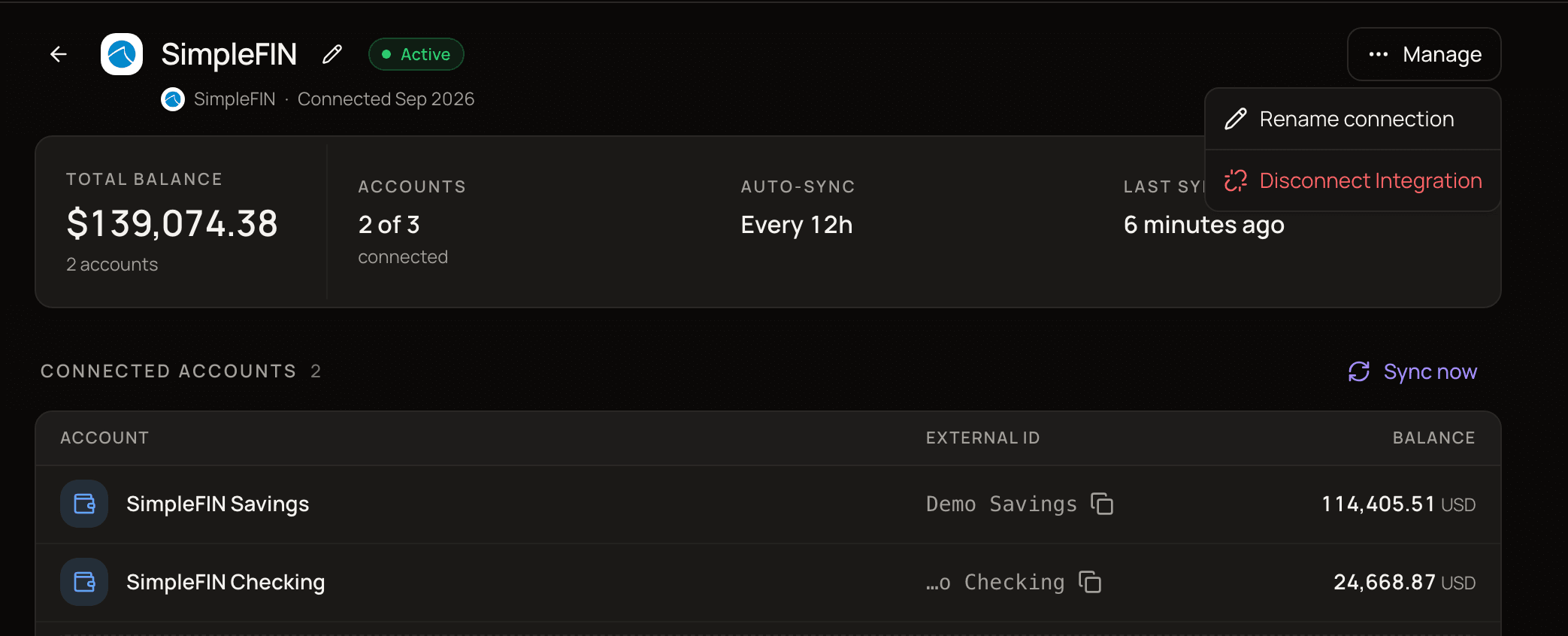
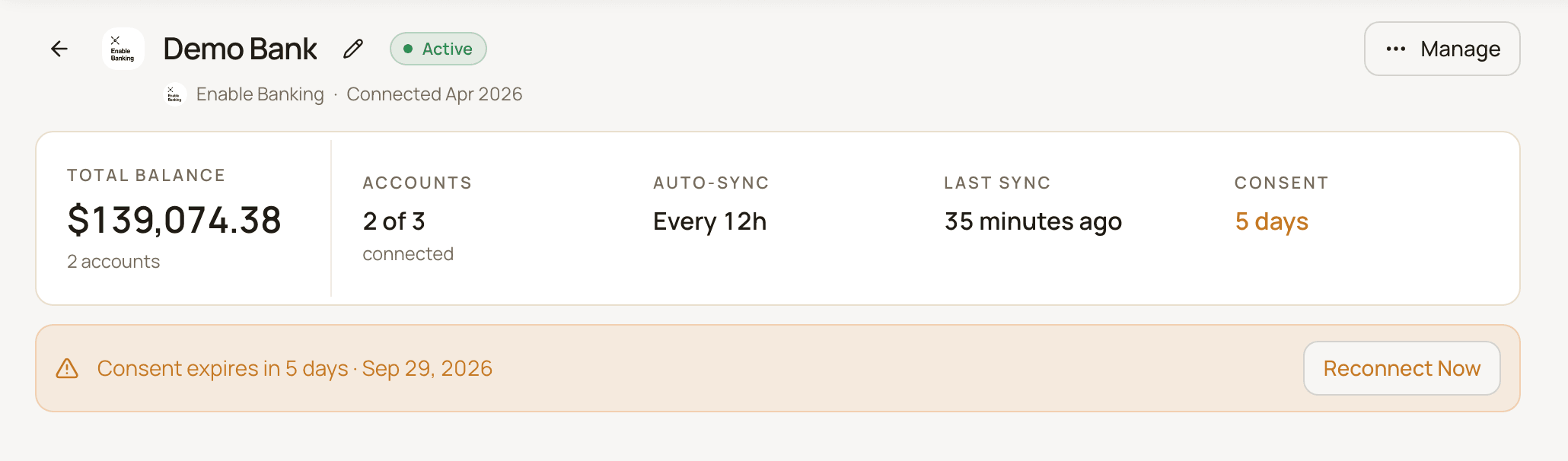
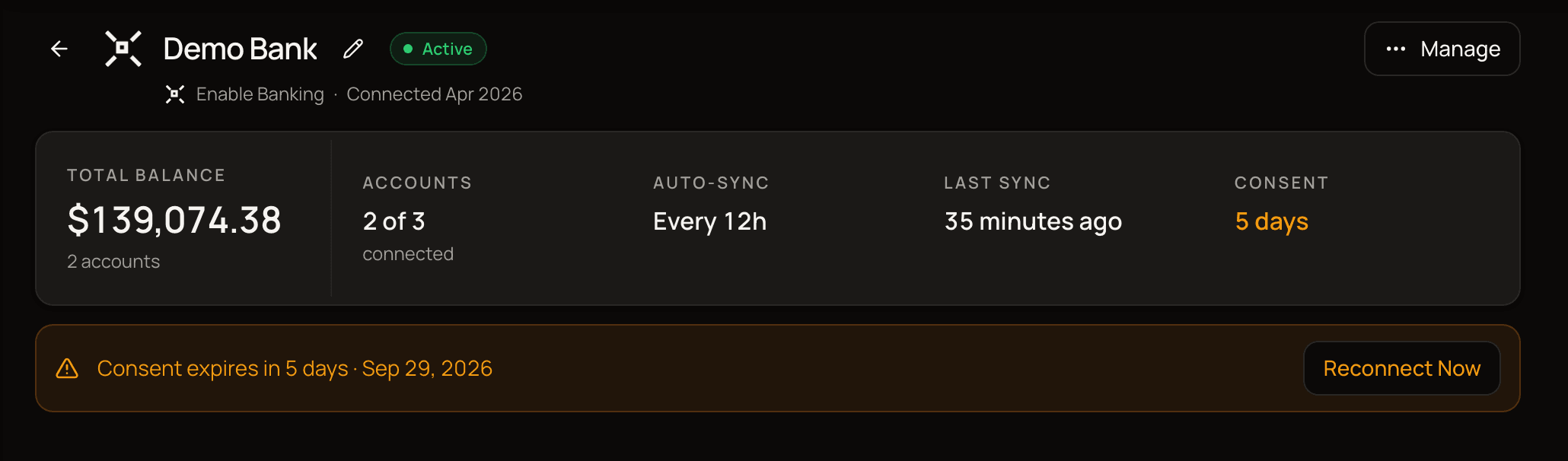
Section titled “Manage a connection”Open the connection’s page from the gear button (Manage connection) on the Accounts page. It shows:
- the connection’s name, whether it’s Active, and when it was connected,
- the Total balance, how many Accounts are connected and the Last sync,
- for Enable Banking, how many days of Consent are left,
- the Connected Accounts list.
The Manage menu at the top has Rename connection and Disconnect Integration.
Add more accounts from the same bank
Section titled “Add more accounts from the same bank”If your bank has accounts you didn’t add at first, click Connect remaining accounts (or Connect Accounts if none are connected yet). In Connect Remaining Accounts, tick the ones you want and click Connect Selected Accounts. Accounts that are already in MoneyMatter are marked Already connected.
Rename a connection
Section titled “Rename a connection”Click Manage → Rename connection, enter a new Connection Name and click Save.
Reconnect a connection
Section titled “Reconnect a connection”When Enable Banking consent runs out
Section titled “When Enable Banking consent runs out”Banks only let an app like MoneyMatter read your data for a limited time. MoneyMatter asks for the longest period your bank allows, or 90 days if the bank doesn’t say. When that time is almost up (7 days or fewer), the connection shows Expiring soon. After that it shows Expired and stops syncing. You’ll also see Connections need reconnecting in the header’s sync popover, and Connection expired on the account’s Data Connection tab.
To renew it:
- Open the connection’s page.
- In the strip that says when consent expires, click Reconnect Now.
- Read Reconnect Integration and click Continue. Your current connection stops working immediately, so finish the next steps.
- Log in at your bank and approve access again.
Your accounts are matched up again and keep syncing into the same MoneyMatter accounts, with their history intact.
When your credentials stop working
Section titled “When your credentials stop working”For the other providers, a connection is switched off when the bank or service keeps rejecting your credentials. The connection’s page then says “This connection needs to be reconnected before it can sync again”. Click Update Credentials. The field is labelled API Key for every provider: paste your new Monobank API token, a new SimpleFIN Setup token or your new Lunch Flow API key. For Walutomat, also paste the Private Key (PEM). Then click Update.
Disconnect a bank
Section titled “Disconnect a bank”- Open the connection’s page.
- Click Manage → Disconnect Integration.
- Decide whether to tick Also remove associated accounts.
- Click Disconnect.
What happens depends on the checkbox:
- Unticked (the default): your accounts and all their transactions stay. They become regular accounts that you update yourself, and syncing stops. Their transactions become regular transactions too, so you can edit and delete them freely.
- Ticked: the connected accounts and all their transactions are permanently deleted.
Disconnecting can’t be undone. If you kept the accounts and connect the same bank again later, MoneyMatter reuses them and recognises transactions it already has, so nothing is duplicated. With Monobank, the most recent transaction from before you disconnected can be synced a second time, so check the newest entries.
Unlink just one account
Section titled “Unlink just one account”To stop syncing one account but keep the rest of the connection:
- Open the account and select the Data Connection tab.
- In the Danger zone, click Unlink from bank.
- Type the account’s name to confirm, and confirm.
The account keeps all its transactions and becomes an account you update yourself. You can link it again later from the same tab.
If you leave the Plus plan
Section titled “If you leave the Plus plan”Your connected accounts and their transactions stay, and you can still see your connections. But you can’t add, sync, reconnect, rename or disconnect them until you’re back on Plus. See plans and billing.
You can still unlink individual accounts: open the account, select Data Connection and click Unlink from bank. The account and its transactions stay, and you can edit them normally.
Good to know
Section titled “Good to know”- Automatic sync only runs when you open the app, at most every 12 hours. Click Sync Now whenever you want fresh data.
- Pick the currency carefully when the bank doesn’t report one. It can’t be changed afterwards.
- Imports into a connected account can’t be undone. Once an account is connected to a bank, earlier imports into it can’t be deleted from Import History.
- The demo can’t connect banks. See Try the demo.