
Vehicles
A vehicle is a special kind of account for a car, motorbike or other vehicle you own. Instead of tracking transactions, MoneyMatter estimates what the vehicle is worth today and lowers that value automatically as it ages.
Add a vehicle
Section titled “Add a vehicle”- In the sidebar, open Accounts → All Accounts.
- Click Add vehicle. On a narrow screen, click the ⋮ button (Account actions) first, then Add vehicle.
- Fill in the Vehicle name, Currency, Make, Model, Year and Vehicle class (Sedan, SUV, Truck, Luxury, Electric vehicle, Motorcycle or Other). The class sets how fast the value drops. Trim (optional) and Current mileage (optional) are up to you.
- Enter the Purchase price and Purchase date.
- Choose a Depreciation pattern: Class default, Slow, Average, Fast or Custom rate. With Custom rate, also enter the Custom annual depreciation rate (%). See how the value is estimated.
- Check the Salvage floor (% of purchase price), the lowest value the vehicle can drop to. It’s 10% by default.
- Click Add vehicle.
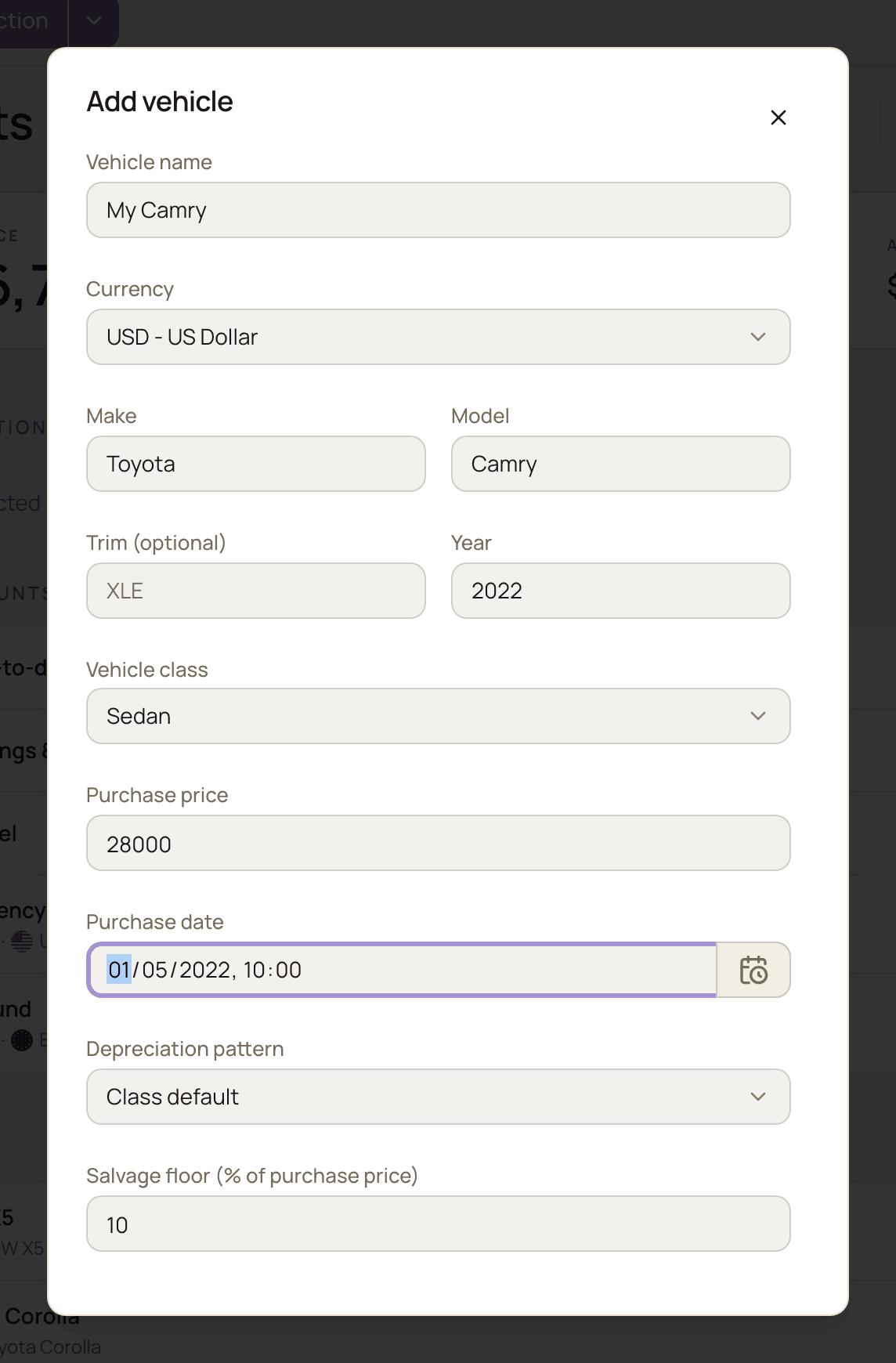
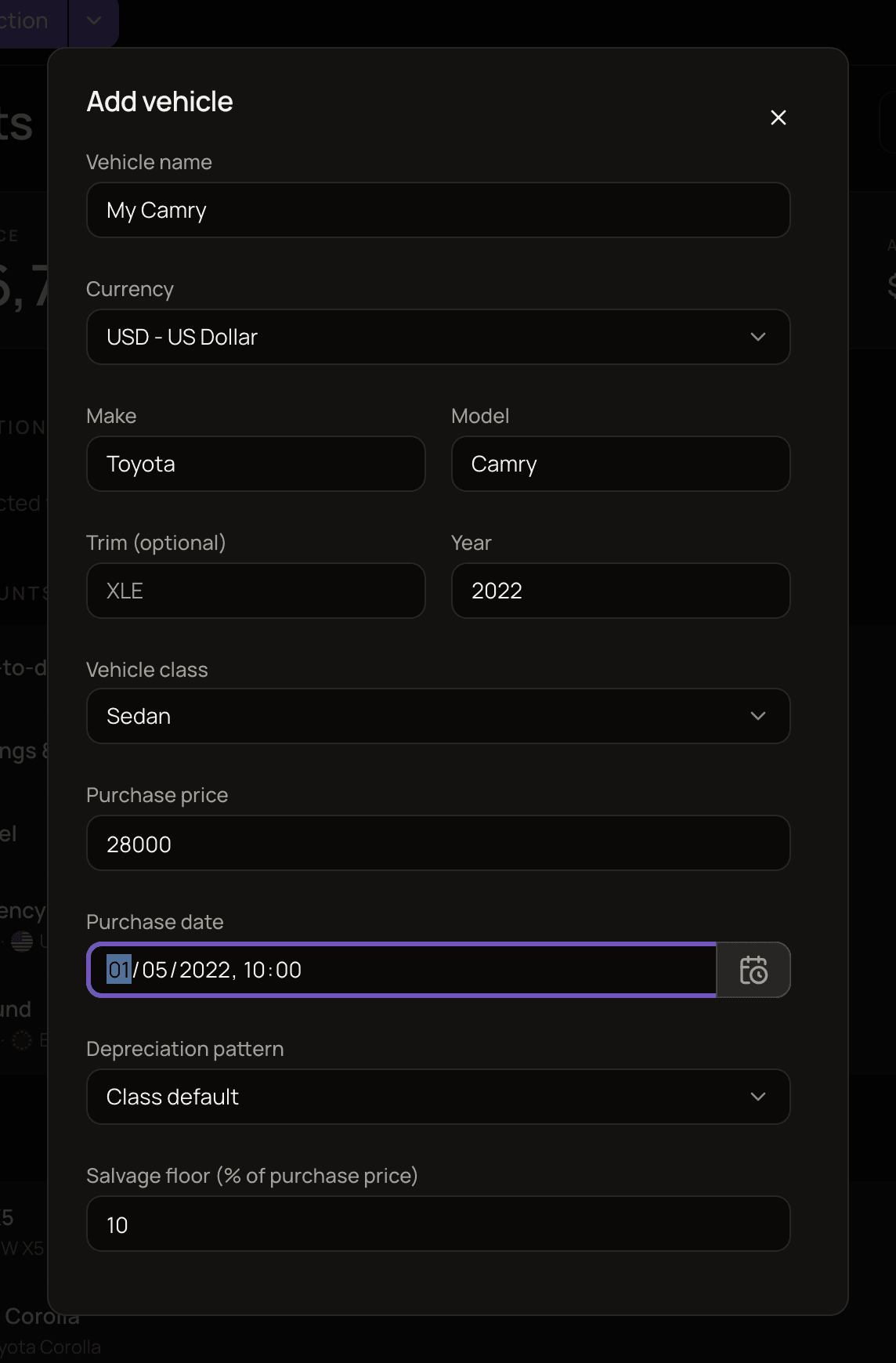
Vehicles have their own form. You can’t create one with Create account, and you can’t turn an existing account into a vehicle.
How the value is estimated
Section titled “How the value is estimated”MoneyMatter starts from the purchase price and lowers it every year. The biggest drops come first: with Class default, a sedan loses 20% in its first year and 15% in its second, and later years drop less.
- Class default and Average use the typical curve for the Vehicle class. Slow drops 30% less each year and Fast 30% more. For a sedan’s first year, that’s 14% or 26% instead of 20%. Custom rate uses the same percentage every year.
- Each year’s drop is taken from the value left after the previous year.
- Part of a year counts in proportion, so the value moves smoothly between anniversaries of the purchase date.
- The value never falls below the salvage floor: a percentage of the purchase price, or of your latest override.
- Mileage is kept for your records. It doesn’t change the estimate.
Opening the vehicle’s page always shows today’s value. In your account list, the sidebar and your totals, the value is updated when it’s more than a week old, so it can briefly differ from the vehicle page.
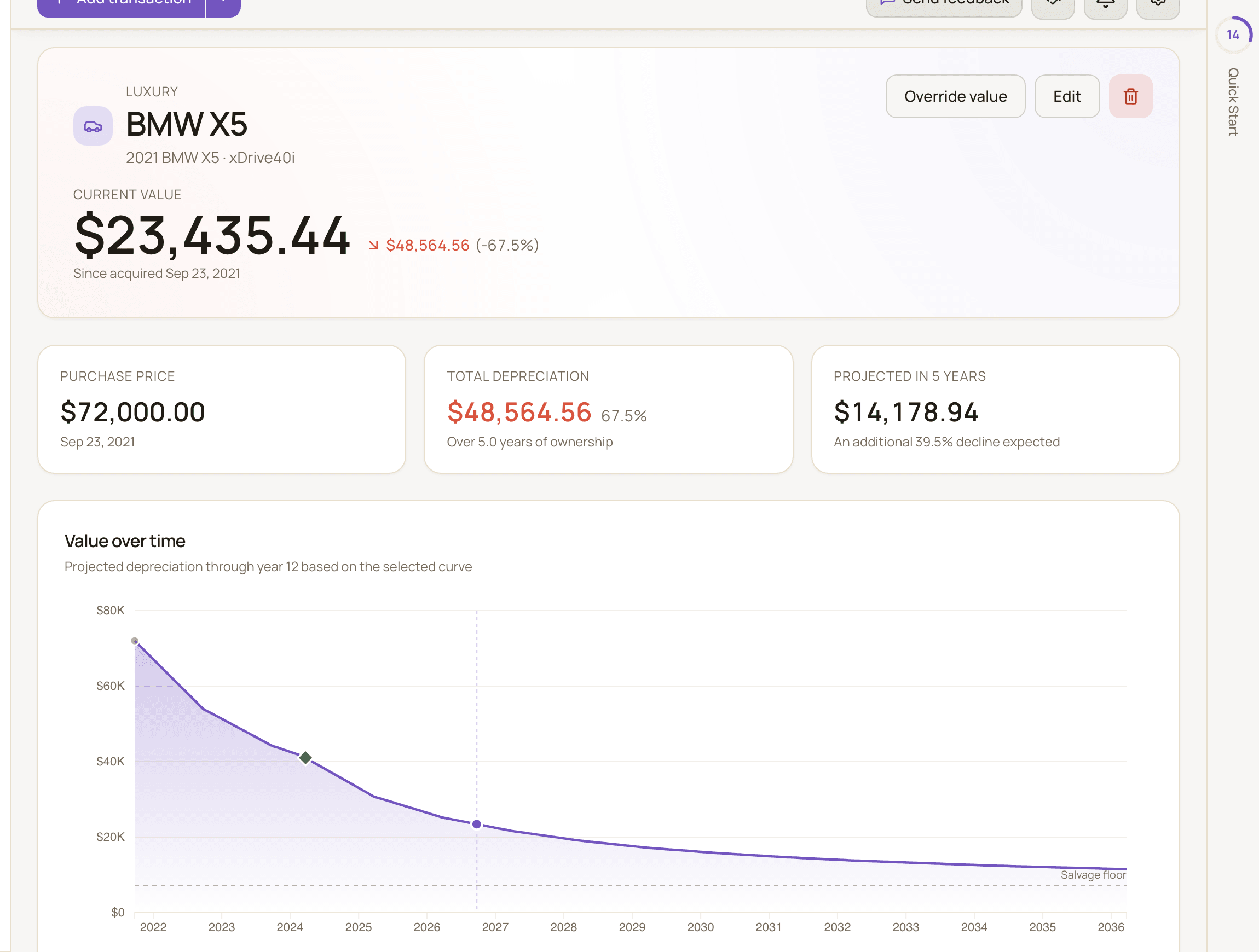
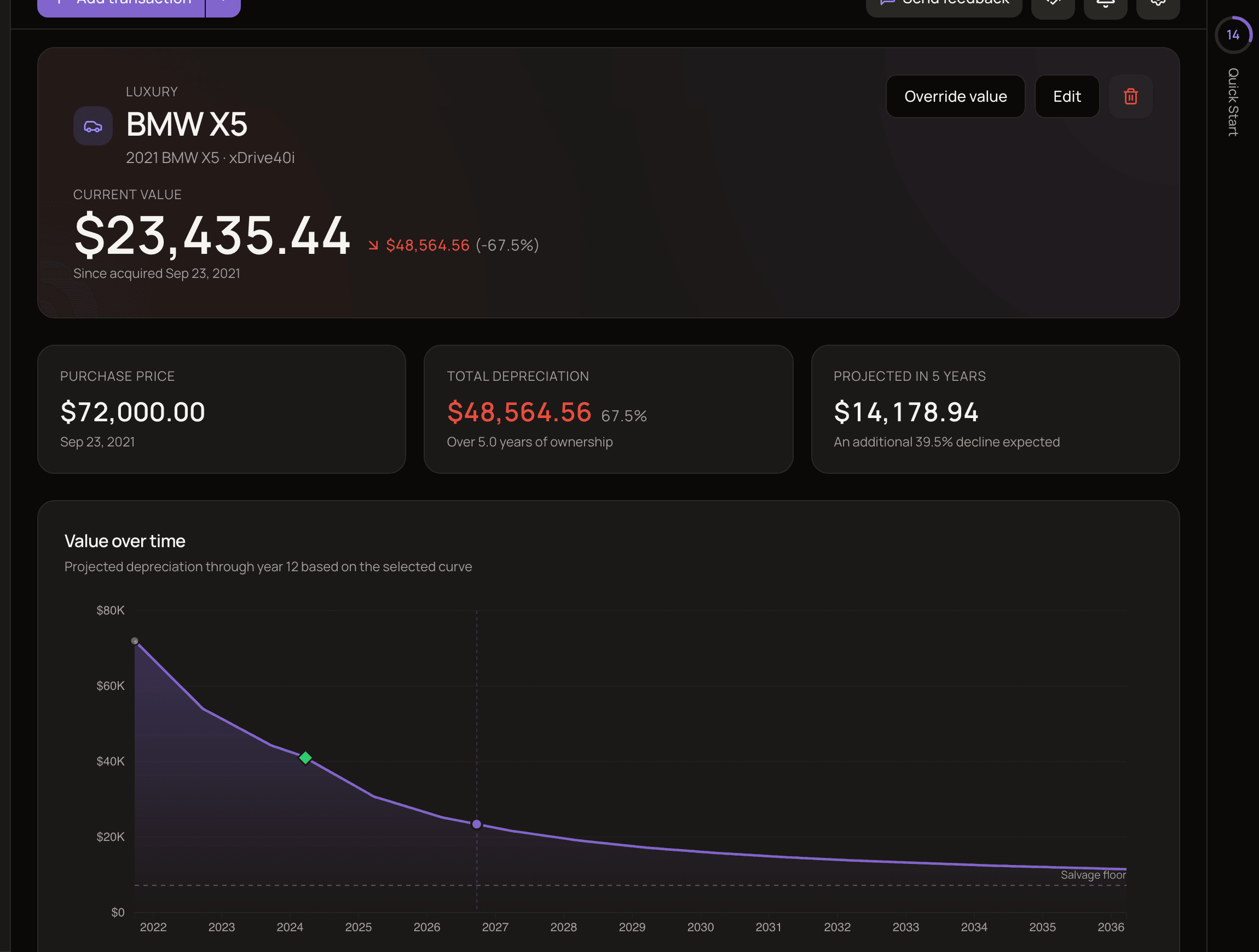
Open a vehicle from the Vehicles section of the Accounts page, or from Cars in the sidebar. The vehicle page shows the Current value, the Total depreciation so far and a Value over time chart.
Edit a vehicle
Section titled “Edit a vehicle”- Open the vehicle.
- Click Edit.
- Change what you need and click Save changes.
You can change the Vehicle name, Make, Model, Trim (optional), Year, Vehicle class, Depreciation pattern, Custom annual depreciation rate (%), Salvage floor (% of purchase price) and Current mileage (optional). Changing the class, pattern, rate or salvage floor recalculates the value right away.
The purchase price, purchase date and currency can’t be edited.
Override the value
Section titled “Override the value”If you know what the vehicle is really worth, for example from a valuation or a sale offer, set it yourself.
- Open the vehicle.
- Click Override value.
- Choose Set value and enter the New value, or choose Adjust value, enter a Change amount and pick Value up or Value down.
- Set When did this happen? and optionally add a Note.
- Click Save value.
From then on, MoneyMatter treats your value and date as a new starting point. The yearly drops start over at the first-year rate, and the salvage floor becomes that percentage of your value. For example, if you set a 6-year-old sedan with Class default to 10,000 EUR, it drops 20% over the next year to 8,000 EUR, just like a new sedan would. The value can’t be negative.
If you set When did this happen? to a past date, the new value counts as what the vehicle was worth on that date, and today’s value is worked out from there. So the current value usually ends up lower than the number you set. This is different from a backdated balance adjustment on an account, where the number you enter is today’s balance.
Like a balance adjustment, an override is recorded as a transaction, and it isn’t counted as income or spending in your reports.
Undo an override
Section titled “Undo an override”- Open the vehicle.
- In Override history, click the delete (bin) button next to the override.
- Confirm with Delete.
The value goes back to following the previous override, or the purchase price if there’s none. The override’s transaction is deleted too.
Where vehicles show up
Section titled “Where vehicles show up”- On the Accounts page, in their own Vehicles section with a total, and as a separate Vehicles figure in the overview. They’re not part of Total balance.
- In your net worth. By default, the dashboard’s Net Worth and Balance trend widgets include your vehicles’ current value, and so does the Net Worth History report. You can leave vehicles out in each widget’s settings. See dashboard.
- In the sidebar, under Cars.
- Not in transaction forms. A vehicle’s value only changes through depreciation and overrides, so you can’t pick it when adding a transaction.
When you sell a vehicle
Section titled “When you sell a vehicle”Vehicles can’t be archived. Don’t delete a vehicle you’ve sold: set its value to 0 instead, so your past net worth still includes it for the time you owned it.
- Open the vehicle.
- Click Override value and choose Set value.
- Enter 0 as the New value.
- Set When did this happen? to the day you sold it.
- Click Save value.
The value stays at 0 from that date on, and your net worth history before the sale is kept.
For the cleanest history, record the sale on the day you sell. If you record it later with an earlier date, your net worth history can keep a leftover amount for the vehicle after the sale date, roughly what it lost in value between the sale and the day you recorded it.
Delete a vehicle
Section titled “Delete a vehicle”Delete a vehicle only if you added it by mistake. Deleting also removes it from your past net worth, including the dates when you owned it, so the Net Worth and Balance trend widgets and the Net Worth History report drop its value for the whole period.
- Open the vehicle.
- Click the delete (bin) button.
- Confirm with Delete vehicle.