
Account groups
Account groups are folders for your accounts. Put all your accounts at one bank together, or keep your savings apart from your everyday spending. Groups only change how accounts are organised on screen. They never change a balance or a statistic.
Where groups show up
Section titled “Where groups show up”- In the sidebar: grouped accounts sit in a folder under Bank Accounts. Each collapsed folder shows the combined balance of its accounts in your base currency. Folders are sorted A–Z, and accounts without a group come after them.
- On the Accounts page: the groups you created that contain at least one manual account appear as folders you can expand in the Manual accounts section. Each shows how many accounts it holds and their combined balance. Empty groups, and groups that only hold bank-synced accounts, don’t appear here.
- In account filters: when you filter transactions or reports by account, accounts are listed under their group, so you can tick a whole group at once.
Create a group
Section titled “Create a group”- Click the gear button (Settings) at the top right of the app.
- In the settings menu, under Workspace, choose Accounts groups.
- Click Add group.
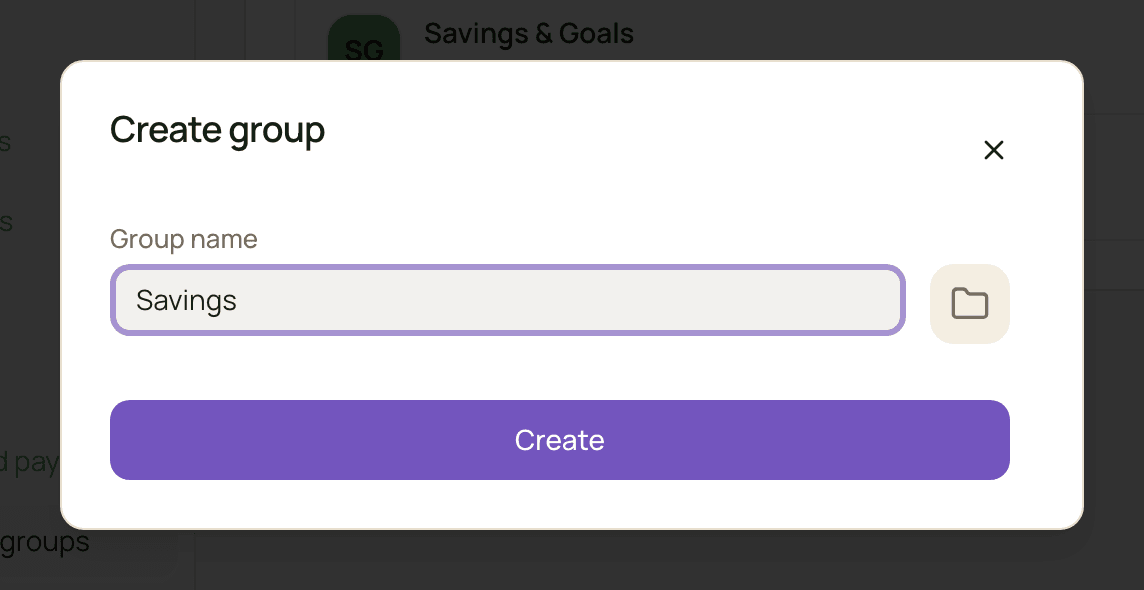
- Enter a Group name. Optionally, click the square next to it to pick a logo. Without one, the group shows a folder icon.
- Click Create.
You can also create a group:
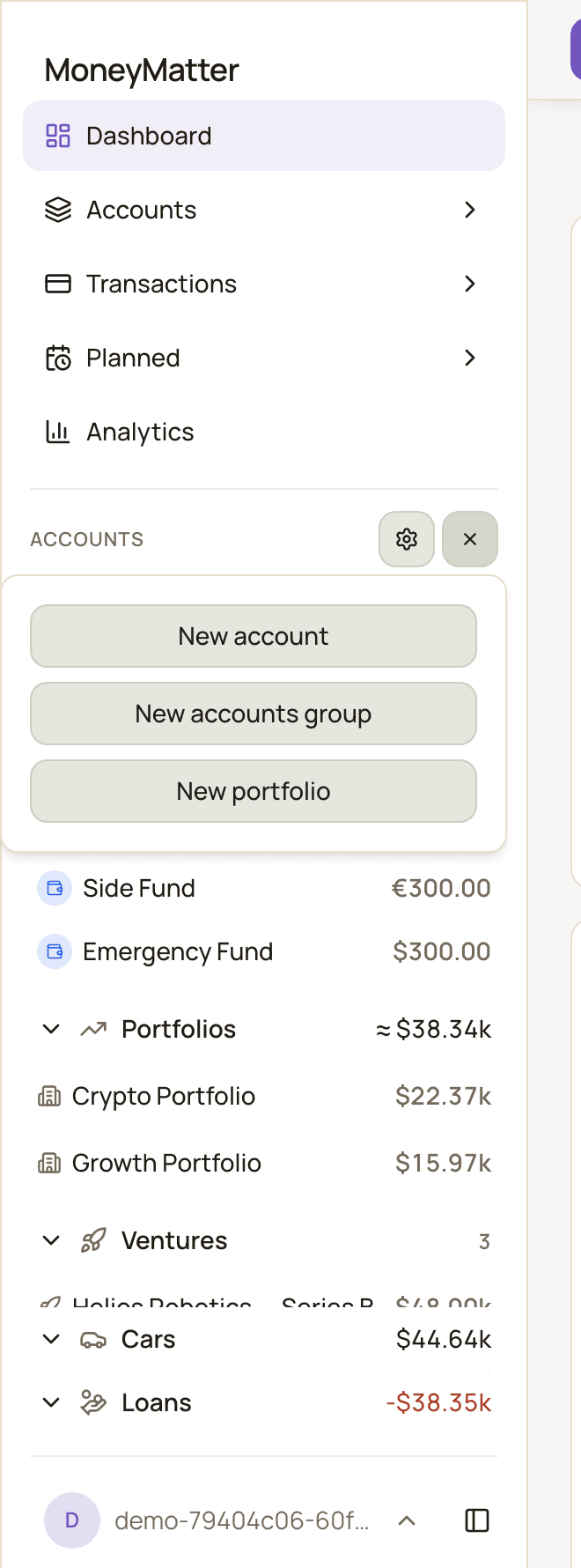
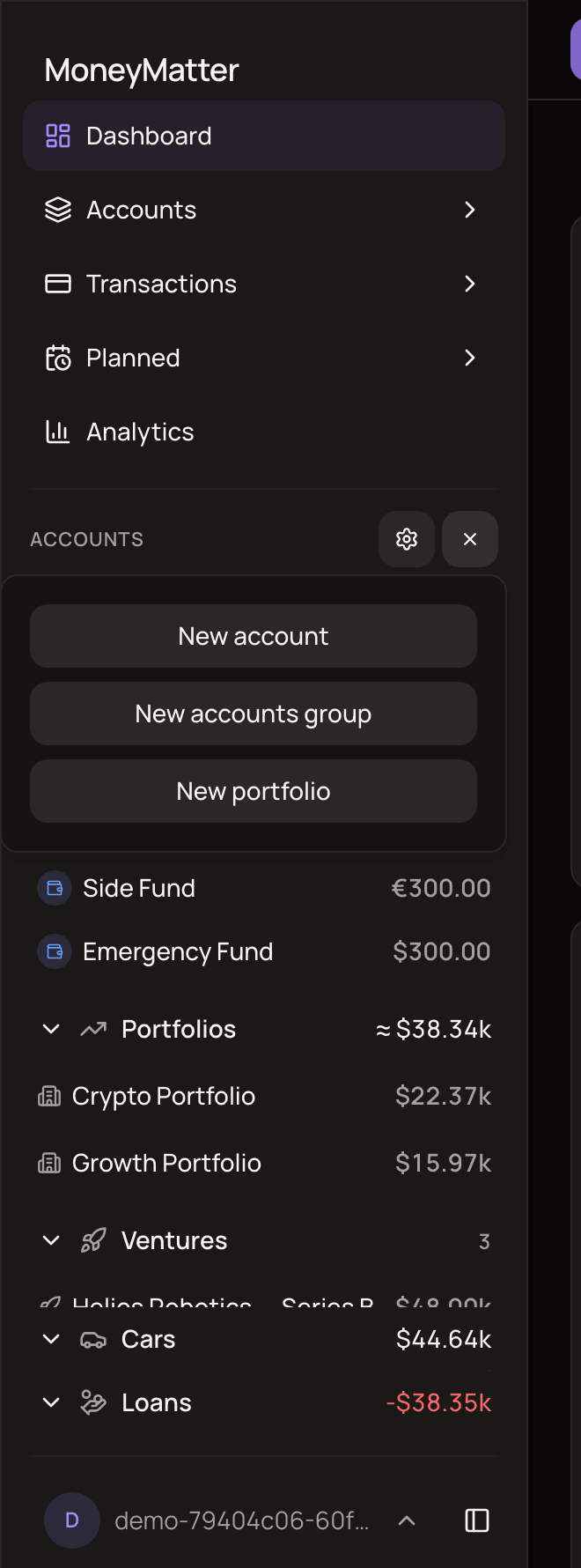
- from the sidebar: find the Accounts heading above your list of accounts (it has a gear and a + button). Click + and choose New accounts group
- from an account: on its Settings tab, click the edit button next to Account group, then Create new group
A new group stays out of the sidebar until you add an account to it.
Add an account to a group
Section titled “Add an account to a group”You add accounts from the account itself.
- Open the account and select the Settings tab.
- Next to Account group, click the edit button. The Link account group dialog opens.
- Pick the group. The group the account is in now is marked Current.
- Click Save. It appears once you’ve picked a different group.
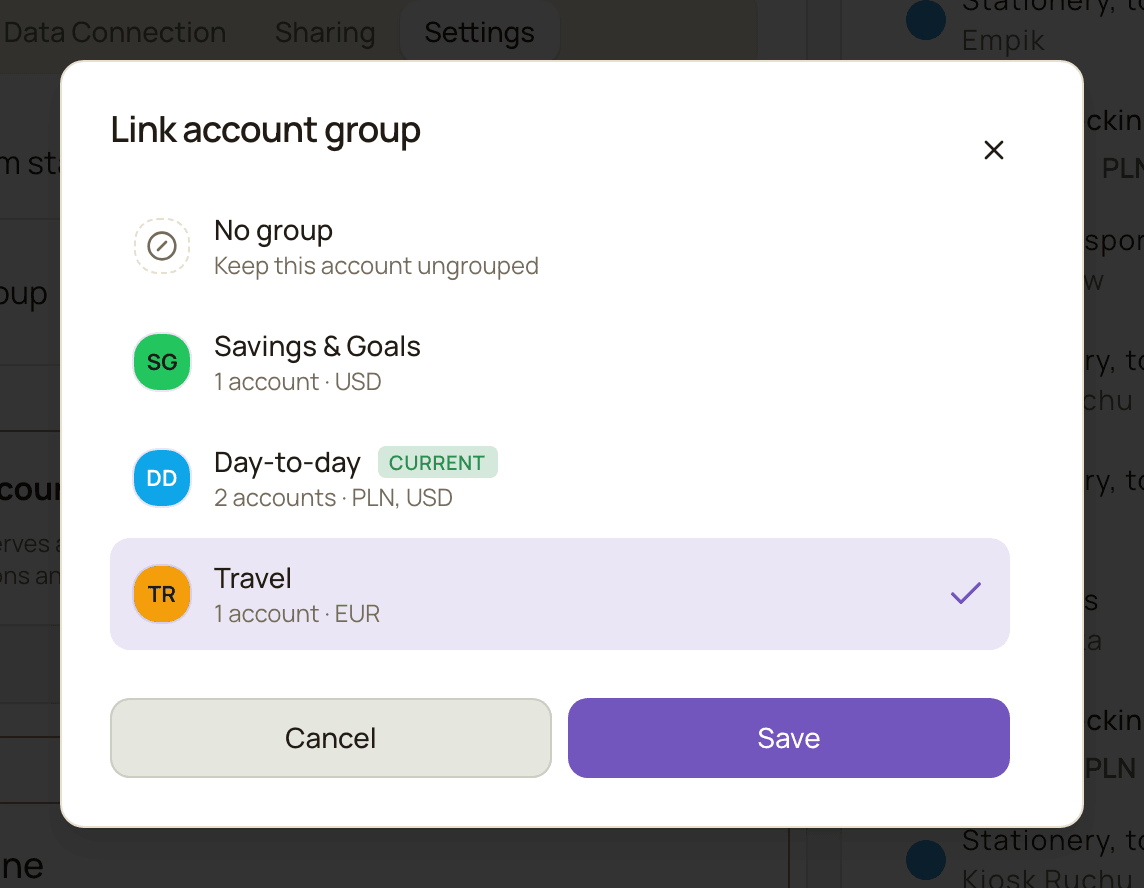
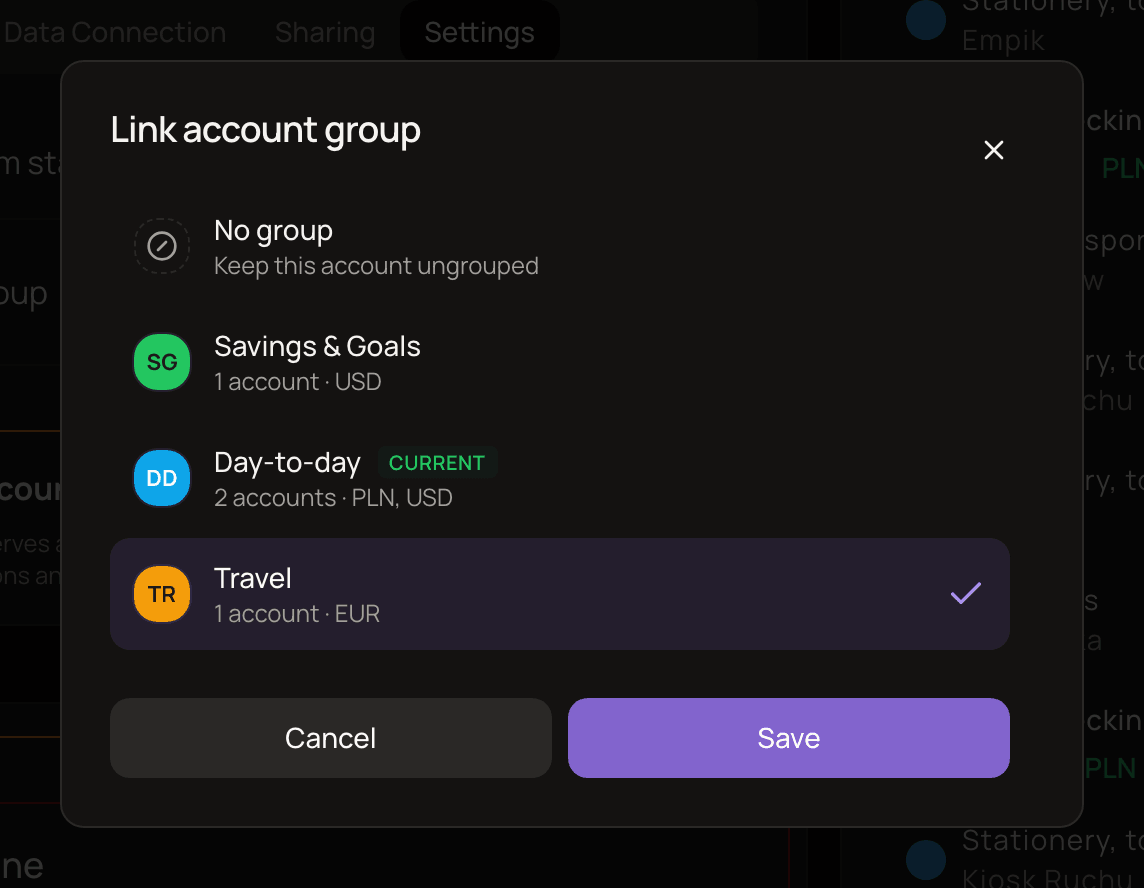
An account can be in only one group. Picking a new group moves it out of the old one.
To take an account out of its group, choose No group (“Keep this account ungrouped”) in the same dialog and click Save.
Manage your groups
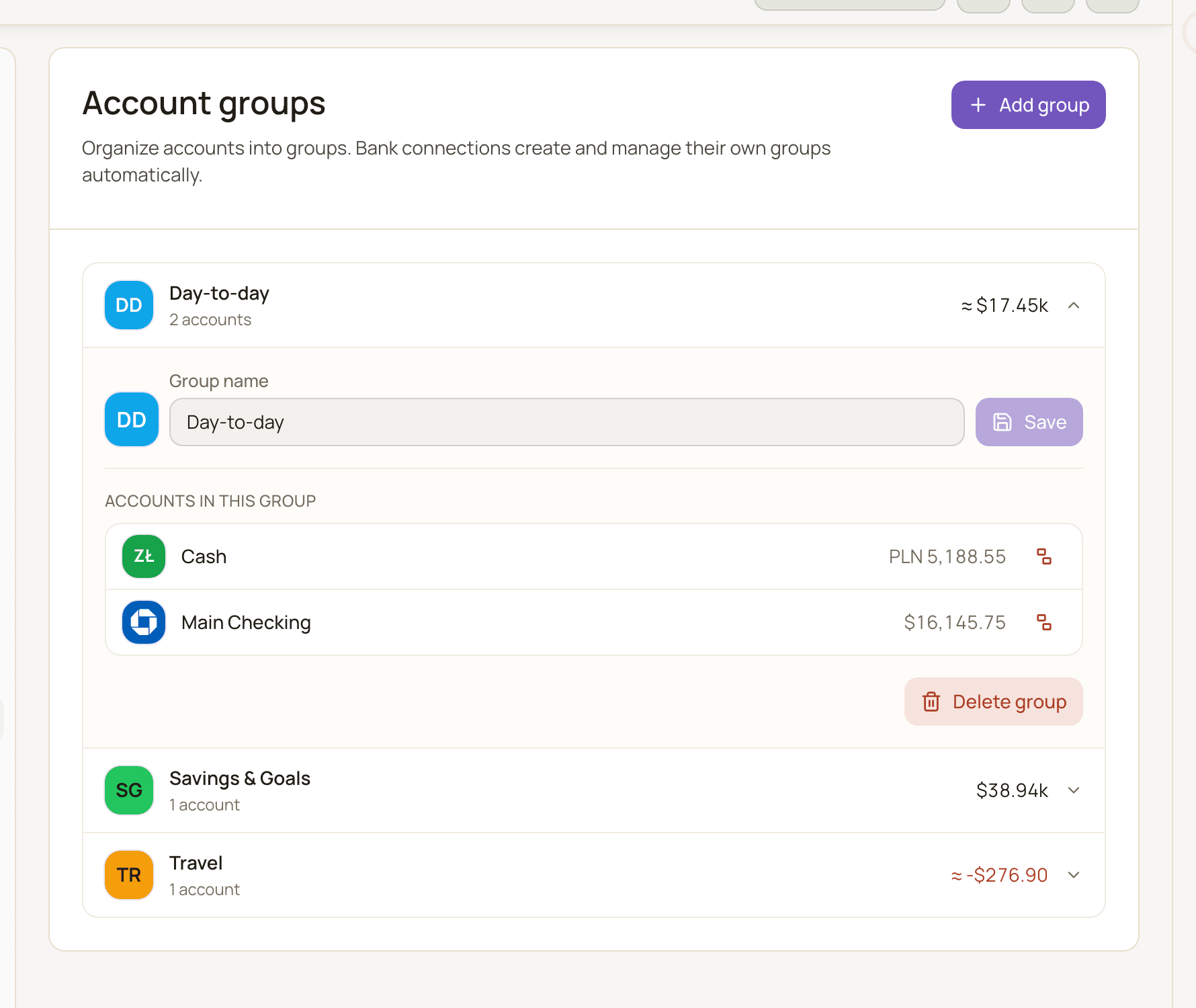
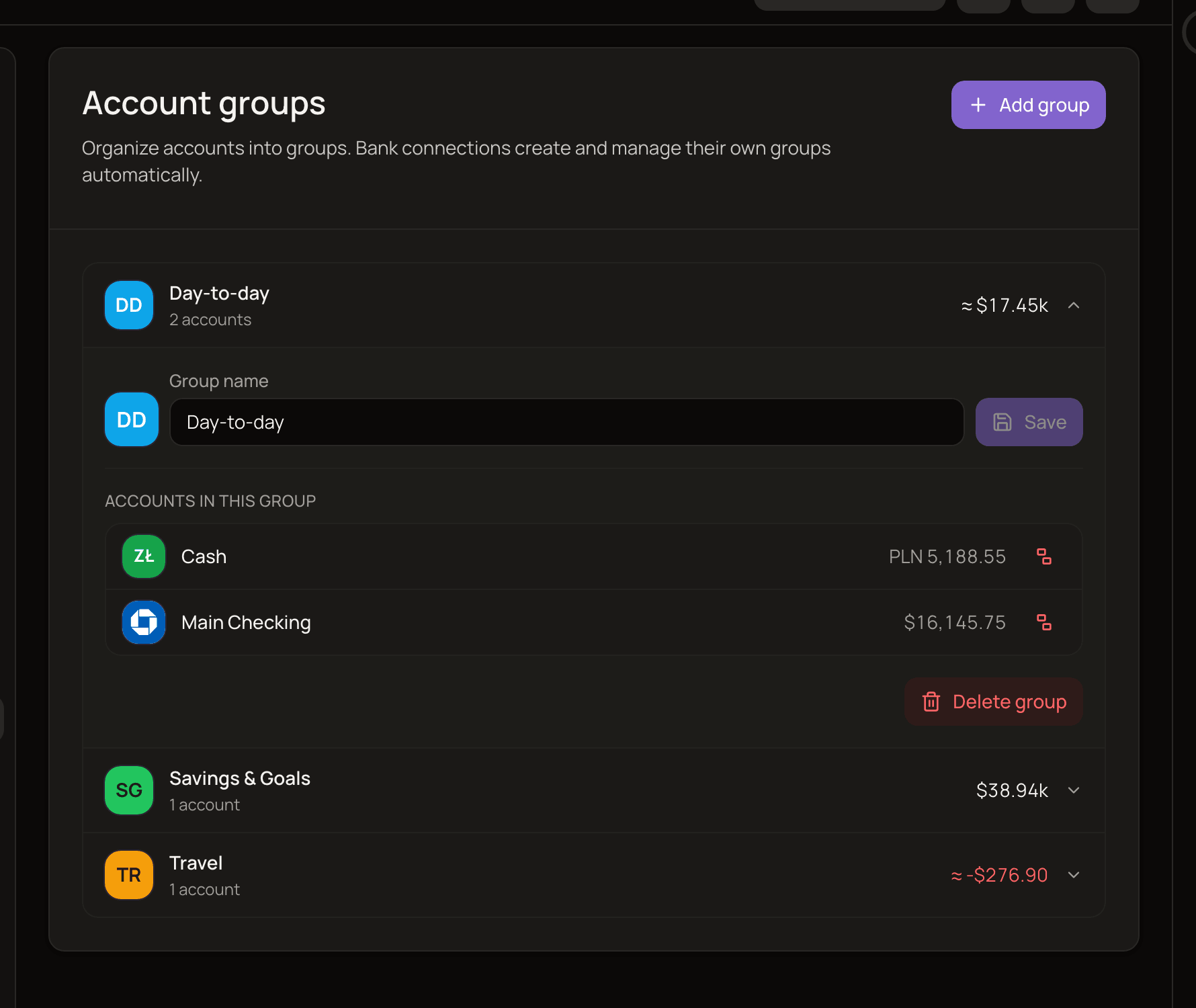
Section titled “Manage your groups”All your groups are listed in Settings → Accounts groups. Each row shows the group’s logo, name, number of accounts and combined balance. Click a row to expand it.
In an expanded group you can:
- Rename it or change its logo: edit the Group name or the logo and click Save.
- See its accounts under Accounts in this group. Click an account to open it.
- Remove an account from the group: click the Remove from group button next to it, then Remove. The account isn’t deleted. It only leaves the group.
- Delete the group: click Delete group, check the list of accounts that will become ungrouped, and click Delete group again to confirm. Your accounts are kept. They simply become ungrouped.
You can’t add accounts to a group from this page. Do that from the account.
Groups created by bank connections
Section titled “Groups created by bank connections”When you connect a bank, MoneyMatter creates a group for that connection’s accounts. These groups are marked Created by bank connection and have a Manage connection button.
The group doesn’t represent the connection itself. You can rename it, move accounts in or out, or delete it, and your accounts keep syncing either way. See bank connections.
On the Accounts page, bank-synced accounts are always listed under Bank connections, whatever group you put them in.
If you move a manual account into a group created by a bank connection, the sidebar shows it in that group’s folder, but on the Accounts page it’s listed as an ungrouped account under Manual accounts.
Good to know
Section titled “Good to know”- Archiving an account removes it from its group, and unarchiving doesn’t put it back. See archive an account.
- Groups with no active accounts don’t appear in the sidebar. They’re still listed in Settings → Accounts groups.
- Hide zero balances in the sidebar settings also hides a group when every account in it has a balance of 0.